B21, China Town Mall, Midrand


A50 Graphics Tablet Drawing Graphic Drawing Pen Design Tablet with 290pps USB-C 10 X 6 Inches 10 Mm Battery-free Pen P02

- Section : Consumer Electronics
- Category : Computer Hardware & Software
- SKU : 1601198690465

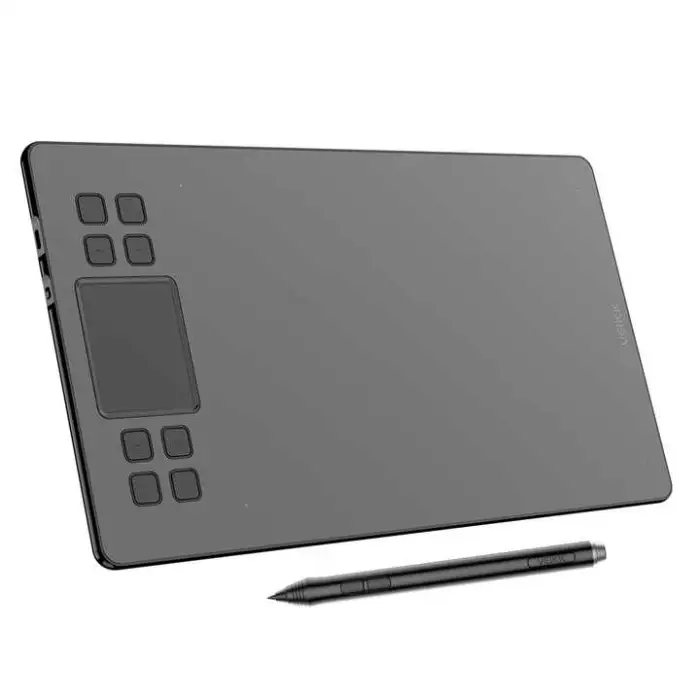
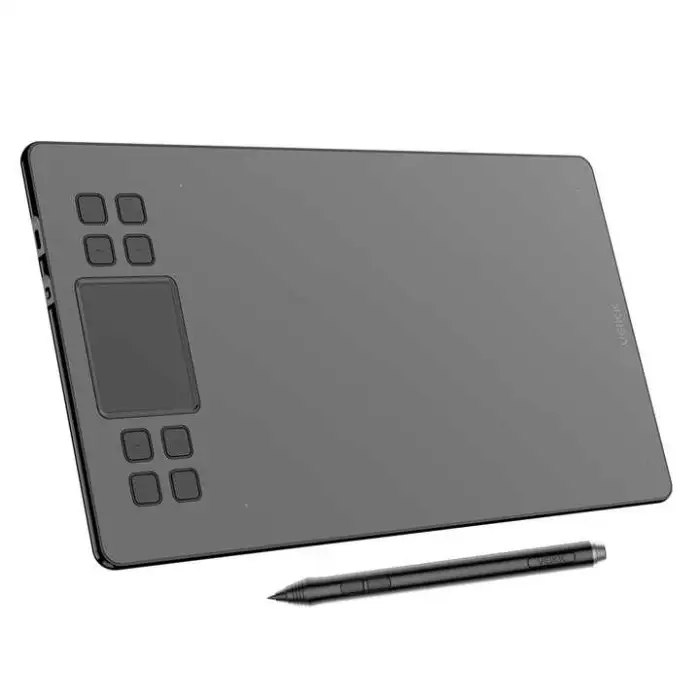
A50 Graphics Tablet Drawing Graphic Drawing Pen Design Tablet
The A50 Graphics Tablet is a powerful tool for artists and designers. With its large drawing area and sensitive pen, it helps you create stunning artwork easily. The tablet is designed for everyone, whether you are a beginner or a professional. Enjoy smooth drawing with 8192 levels of pressure sensitivity and a fast report rate.
Specifications
| Attribute | Details |
|---|---|
| Pressure Level | 8192 Levels |
| Report Rate (Pen) | 290 PPS |
| Pen Resolution | P02 |
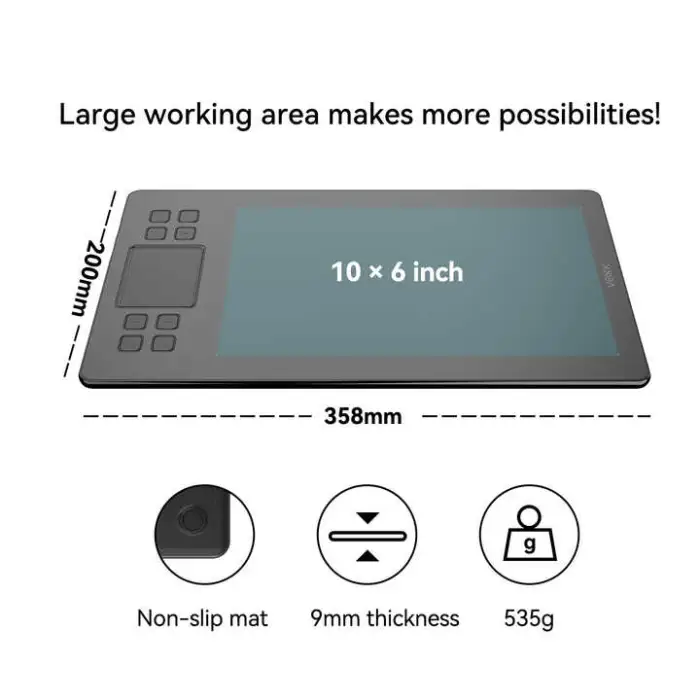
| Dimensions | 10 x 6 Inches |
| Working Area | 10 x 6 Inches |
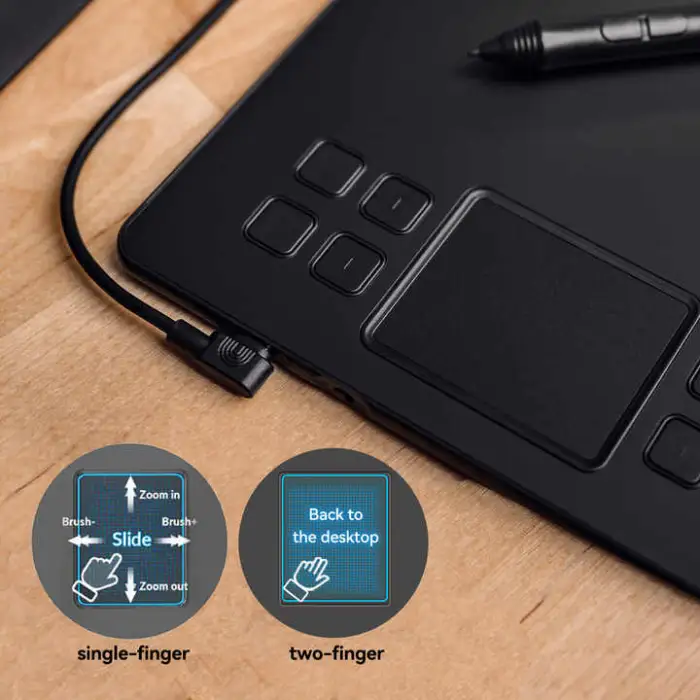
| Press Keys | 8 Shortkeys with One Touch Pad |
| Interface | USB-C |
| Model Number | A15 |
| Single Package Size | 38 x 22 x 4.28 cm |
| Single Gross Weight | 0.920 KG |
Key Features
- Large drawing area of 10 x 6 inches.
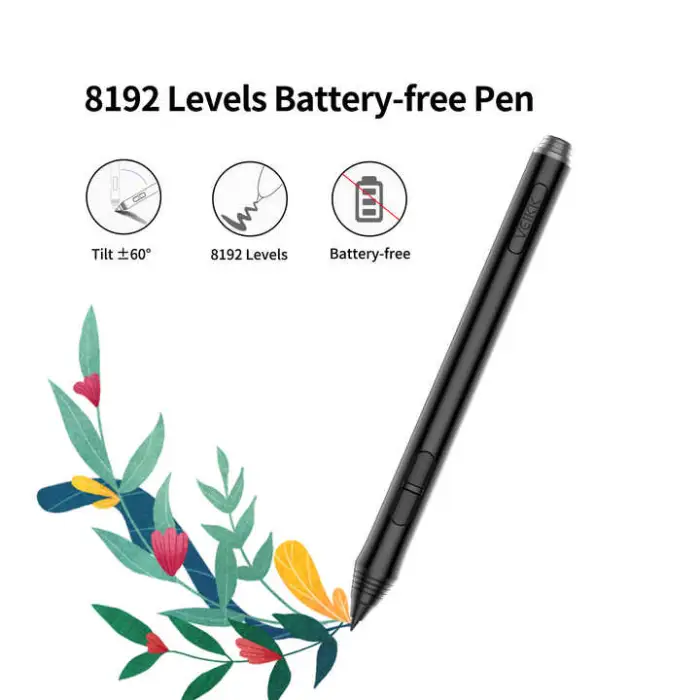
- Battery-free pen for endless creativity.
- 8192 levels of pressure sensitivity for precise control.
- Fast report rate of 290 PPS for smooth lines.
- USB-C interface for easy connectivity.
- 8 customizable shortcut keys for quick access.
Applications
- Digital art and illustration.
- Graphic design projects.
- Photo editing and retouching.
- Animation and motion graphics.
- Online teaching and presentations.
The VEIKK A50 Graphics Tablet is your perfect companion for all your creative needs. Get ready to unleash your imagination and create amazing artwork!
Product Info Gallery
- Shipping Timeframes: All orders are processed within 2-5 business days (excluding weekends and holidays). After your order has been processed, the estimated delivery time is before 03 Feb, 2026, depending on customs, Please note that due to high demand, some items may experience longer shipping times, which will be communicated at order confirmation email.
- Order Processing Time: Please allow 2-5 business days for us to process your order before it is shipped . Orders placed after 16:00 on Fridays, or during weekends and public holidays, will begin processing on the next business day. Processing times may be extended during peak seasons or sales events.
- Manufacturing Time: Some products needs manufacturing time, the manufacturing process will take approximately 10-30 business days depending on the product. This timeframe may vary depending on the complexity of the product and current demand. but this will be communicated with you during order confirmation.
- Returns and Exchanges: We offer a 30-day return policy for most items. If you are not completely satisfied with your purchase, you may return it within 30 days of receipt for a refund or exchange. Items must be unused, in their original packaging, and accompanied by proof of purchase. Return shipping costs are the responsibility of the customer, unless the item was damaged or defective upon arrival.
1. What is included in the VEIKK A50 package?
Package contents vary by retailer. Typically you get the A50 tablet, a battery-free P02 pen, a USB‑C cable (or USB‑C to USB‑A cable), replacement pen nibs and a nib remover, a quick start guide and driver/installation instructions. Check the seller listing for exact contents.
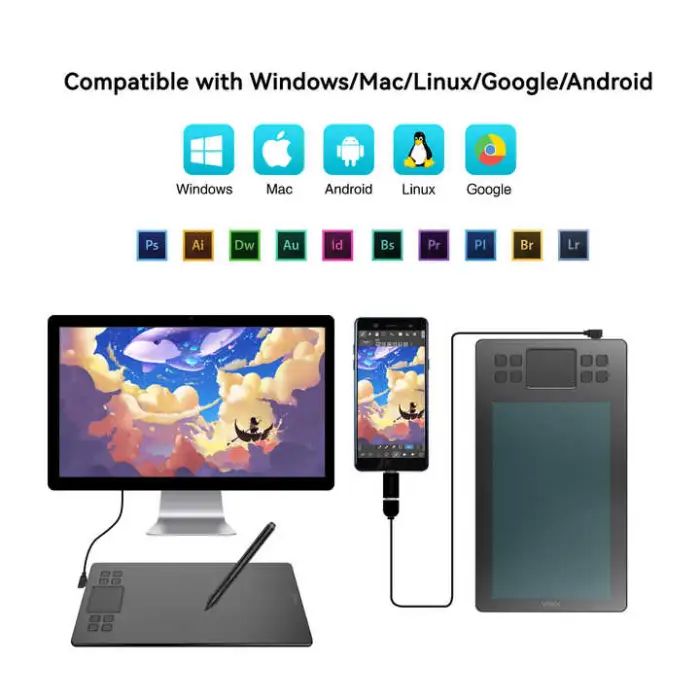
2. Which operating systems does the VEIKK A50 support?
The A50 generally supports Windows (Windows 7/8/10/11) and macOS (modern versions). Many VEIKK tablets also work with Android devices that support USB OTG. For exact compatibility and driver downloads, check the VEIKK support page or the product manual.
3. How do I install the drivers and set up the tablet?
Download the latest driver from VEIKK's official support page, install it, then connect the tablet via the USB‑C cable. After installing the driver, you can customize pen settings, pressure sensitivity and shortcut keys in the driver control panel. Reboot if the tablet isn’t recognized immediately.
4. What does "battery-free pen" mean and do I need to charge it?
Battery-free means the P02 pen uses electromagnetic resonance technology, so it doesn't need charging or batteries. Just use it directly—no charging required.
5. What is the pressure sensitivity and why does it matter?
The A50 offers 8192 levels of pressure sensitivity. More pressure levels allow finer control over line thickness, opacity and brush dynamics in drawing and painting apps, giving a more natural pen-on-paper feel.
6. What does the 290 PPS report rate mean?
290 PPS (points per second) is the pen report rate—the frequency the tablet samples pen position. A higher rate yields smoother, more responsive strokes with less lag, especially during fast hand movements.
7. How do I customize the 8 shortcut keys and touchpad?
Open the VEIKK driver/control panel after installation. There you can assign functions (like undo, zoom, brush size) to each of the 8 keys and configure the one-touch pad behavior. Changes apply globally or per-application if the driver supports app-specific profiles.
8. Is the A50 compatible with Photoshop, Illustrator and other creative apps?
Yes. The A50 works with major art and design applications (Photoshop, Illustrator, Clip Studio Paint, Krita, GIMP, etc.) that support pen input and pressure sensitivity. Ensure the app has pen pressure enabled in its brush or tablet settings.
9. Can I use the A50 on multiple monitors and map the working area?
Yes. The driver typically allows mapping the tablet working area to a specific monitor or to the entire desktop. Open the driver settings to choose monitor mapping and to adjust screen-to-tablet mapping ratios.
10. Does the pen support tilt recognition?
The product specifications provided do not list tilt support. If tilt sensitivity is required, verify the detailed driver/spec page or contact VEIKK support to confirm whether your specific unit supports tilt.
11. What should I do if pressure sensitivity or pen input isn't working?
First, install or update the official VEIKK driver and restart your computer. In your creative app, enable pen pressure in brush settings. Try reconnecting the tablet, testing in another app, and ensuring no conflicting drivers (other tablet brands) are installed. If problems persist, contact VEIKK support.
12. Is the A50 compatible with iPad or iPadOS?
Most VEIKK tablets are not natively compatible with iPad/iPadOS since iPads use different protocols (Apple Pencil). Check the product page or contact the seller for any supported adapters or confirmed iPad compatibility, but do not assume full functionality.
13. What does the model number discrepancy mean? (A50 product name vs. Model Number A15)
Some listings show 'A50' as the product line while internal model or batch numbers (like 'A15') may appear on packaging or specification sheets. This can be normal, but if you're concerned, confirm with the seller before purchase to ensure you receive the intended A50 tablet.
14. Where can I buy replacement nibs or a replacement pen?
Replacement nibs and pens are available from VEIKK authorized dealers, online marketplaces, or the VEIKK accessories store. Check the official website or contact VEIKK support for compatible spare parts and part numbers.
Latest Order Arrivals
Discover our latest orders
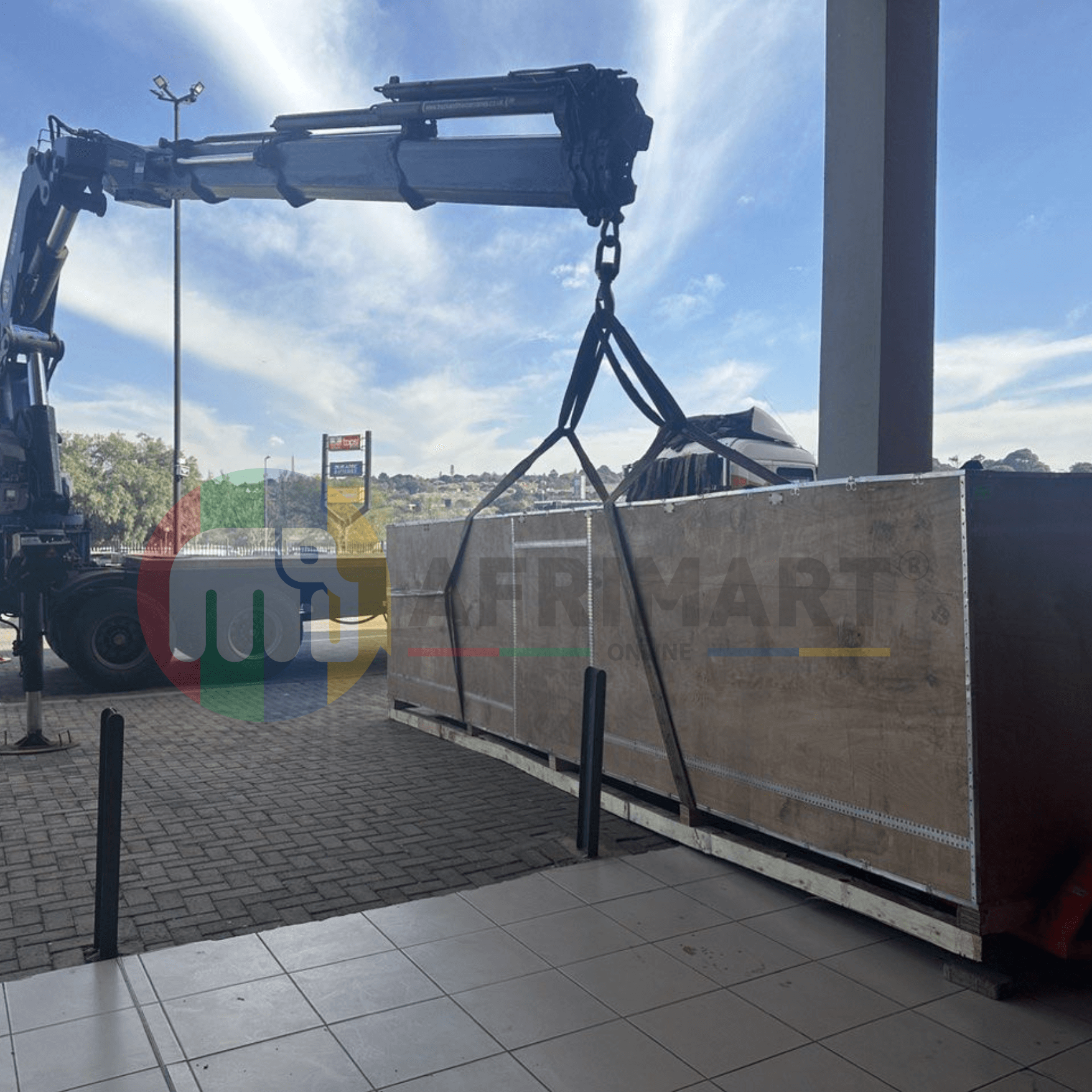
12 Heads Embroidery Machine
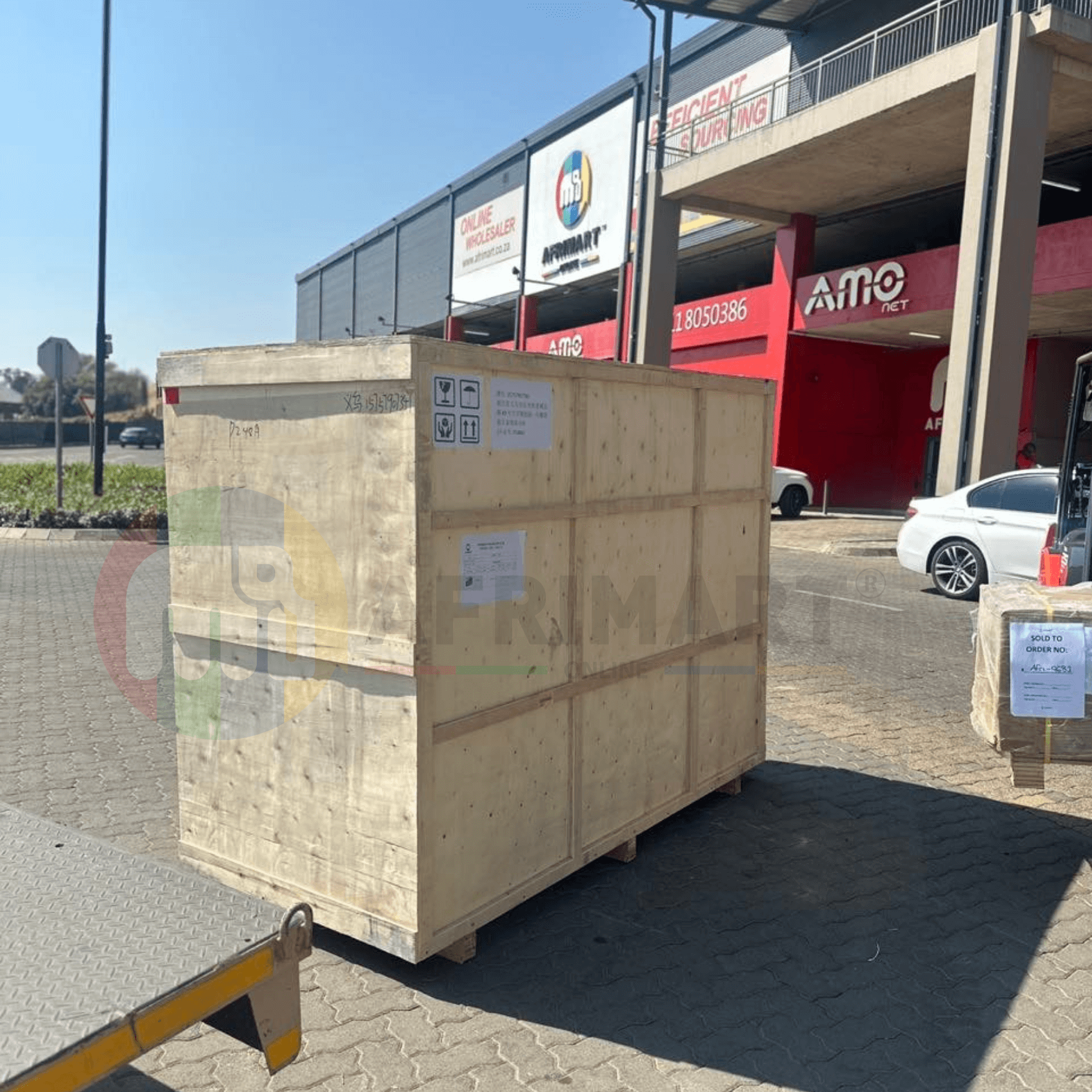
Dewatering Pump Machine

Order Collection
Portable Water Drilling Rig
Order Usefully Collected
Batch of Orders
Agriculture Processing Machines
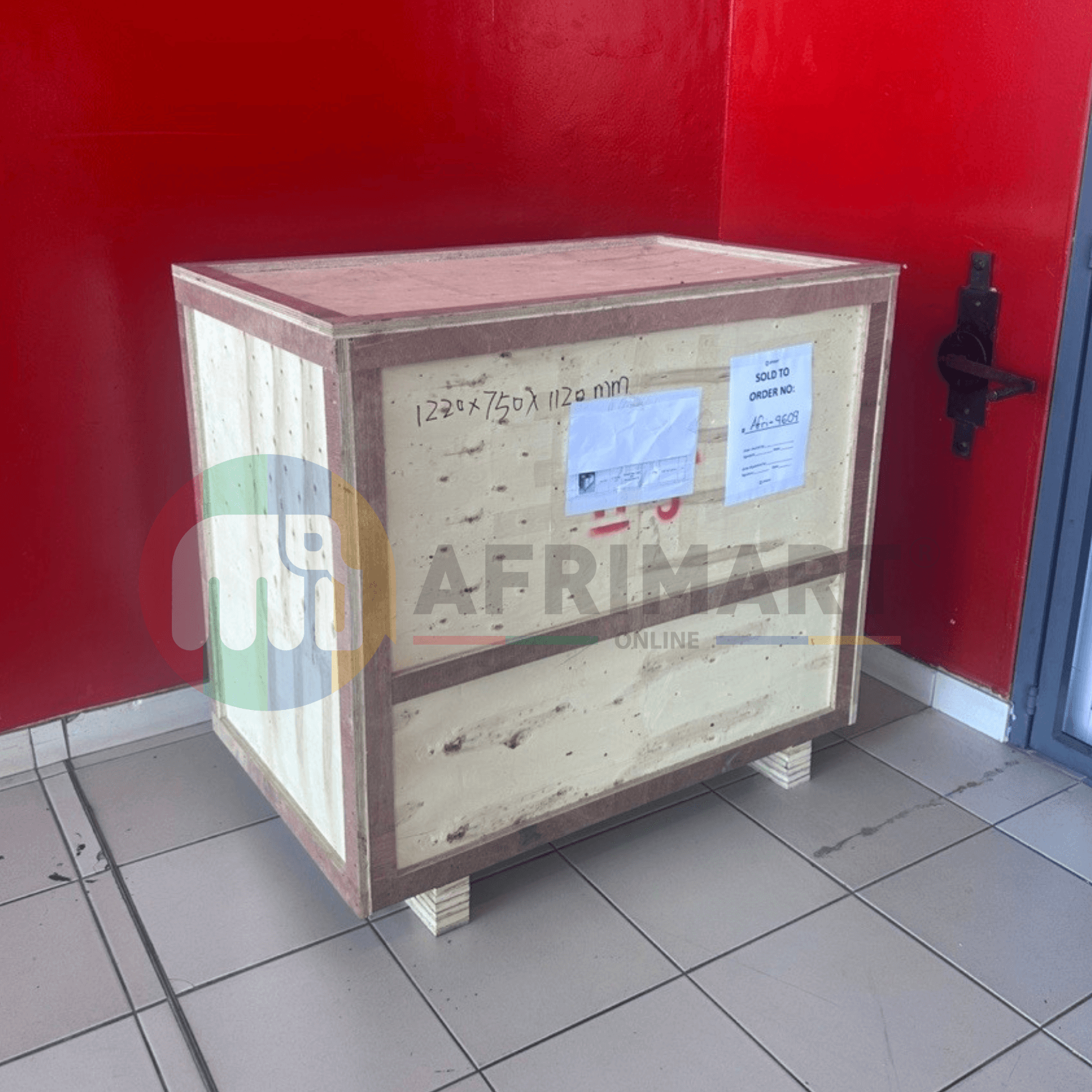
Meat Grinder Machine
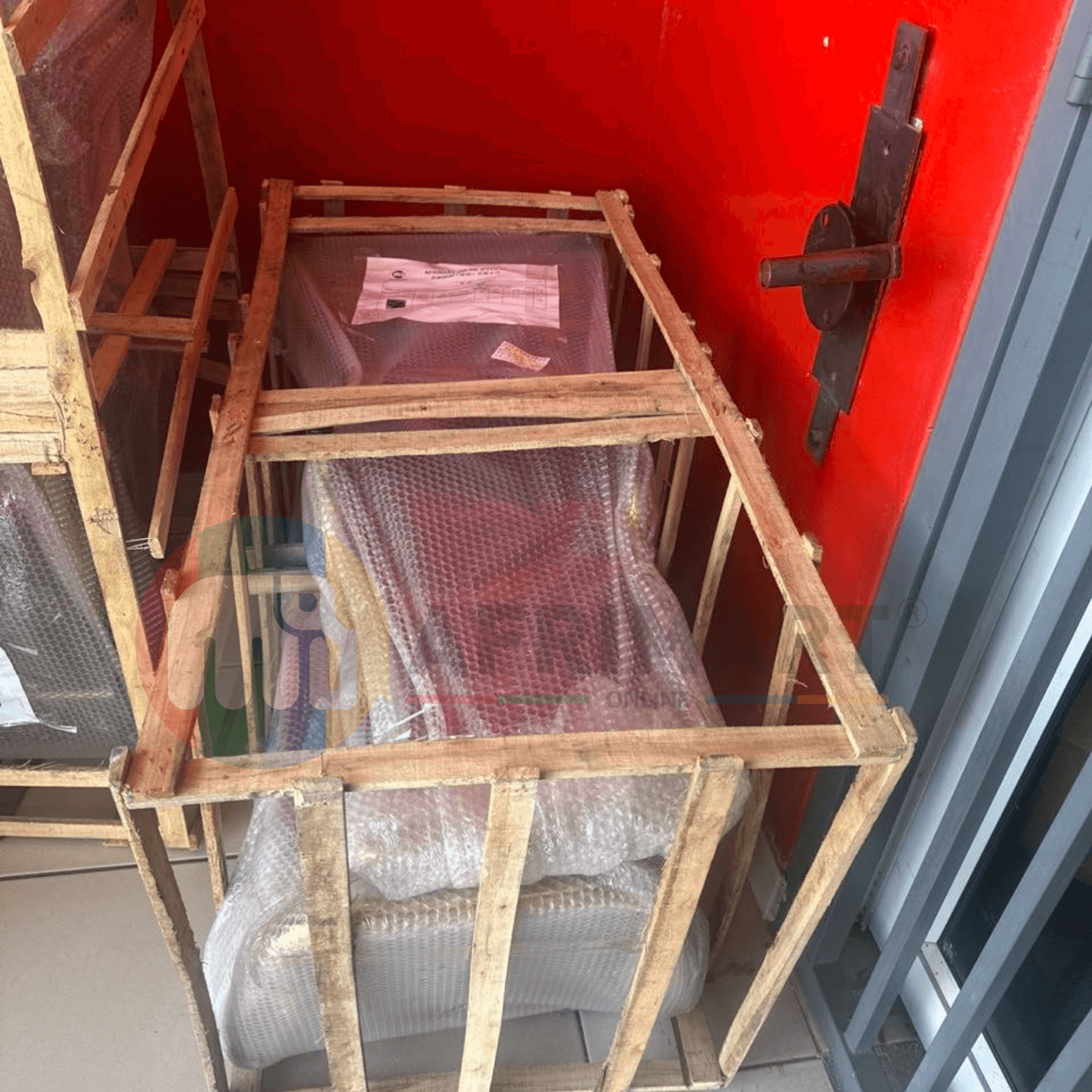
Water Pump Equipment
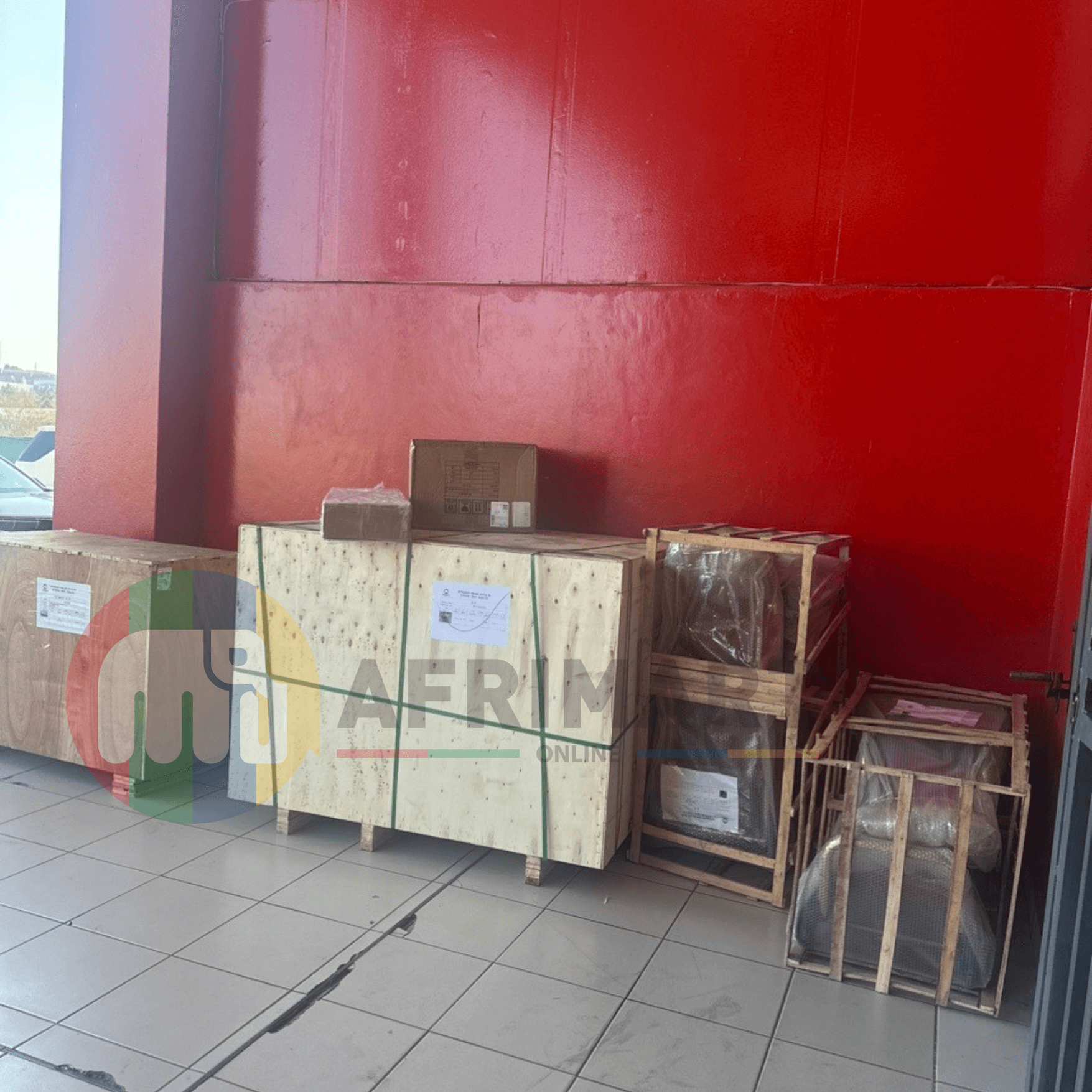
Packaging Machine and accessories

Fabrics Manufacturing Equipment
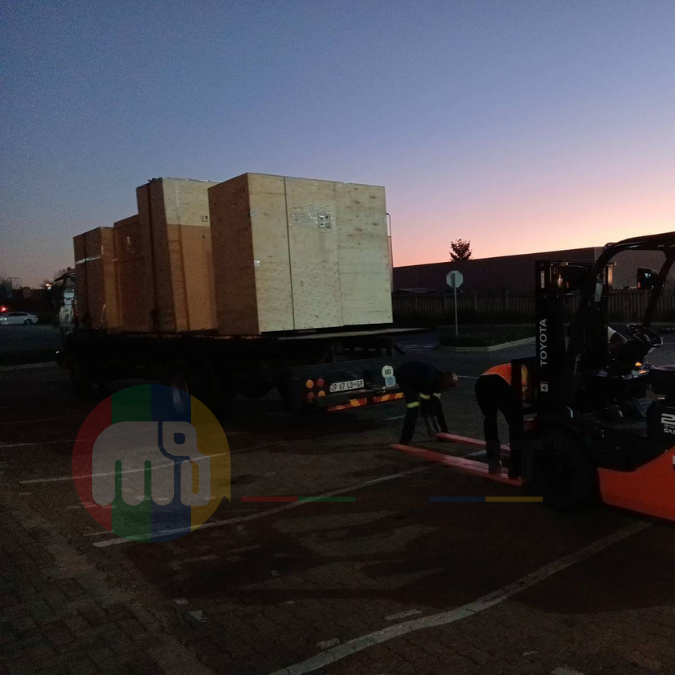
Mining Equipments
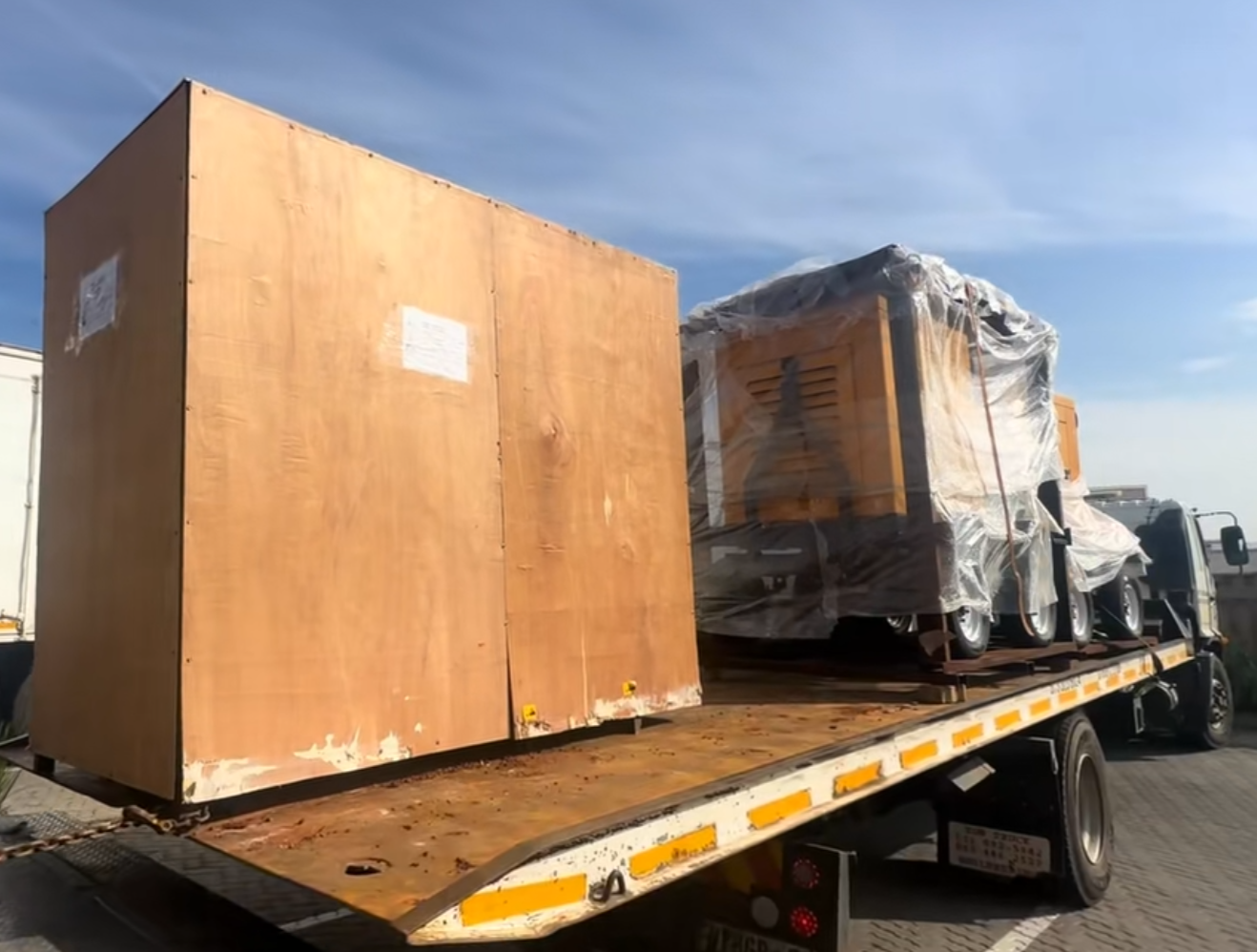
Food Processing Machine
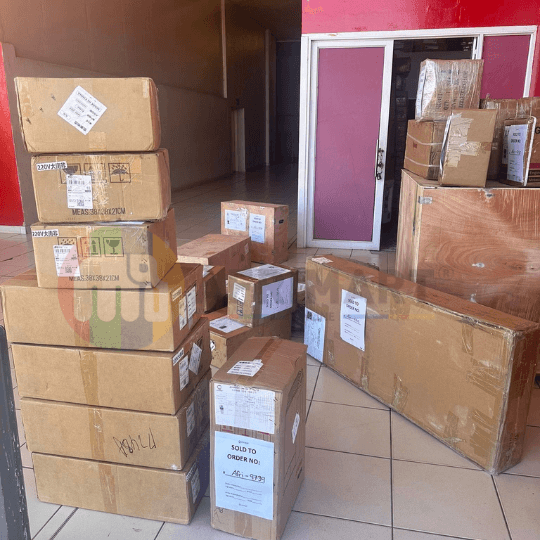
Batch of Orders
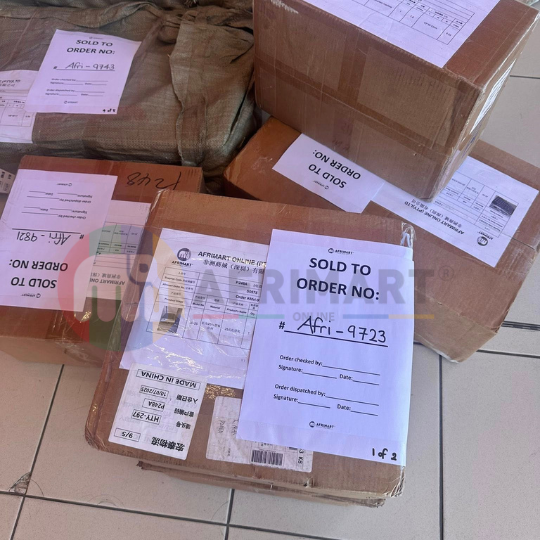
Batch of Orders
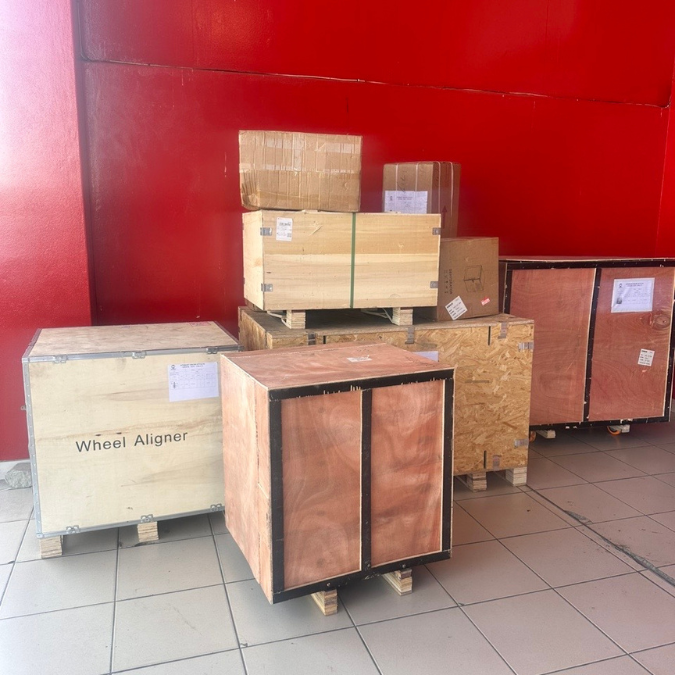
Latest Orders Labelled
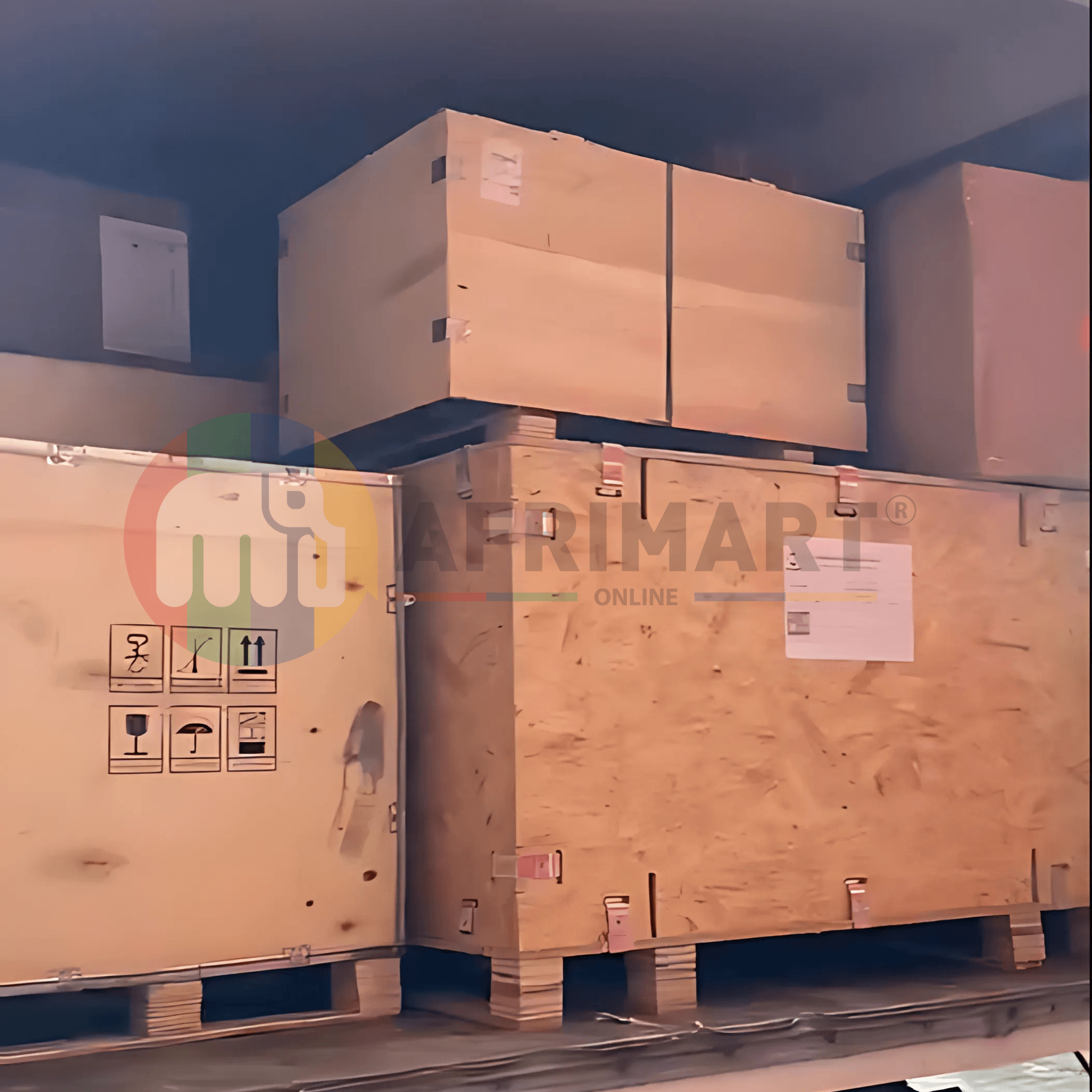
wheel alignment machines
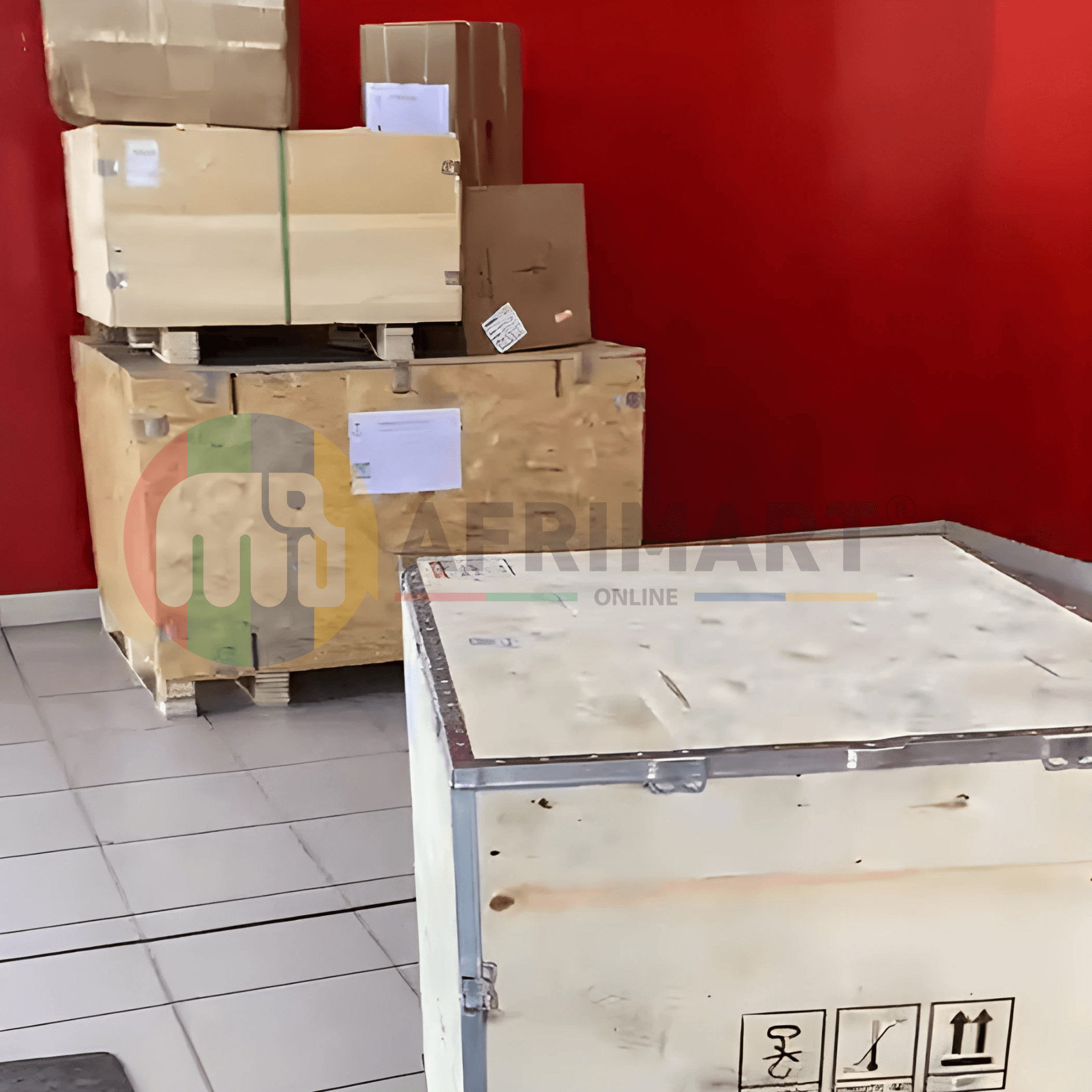
new arrivals
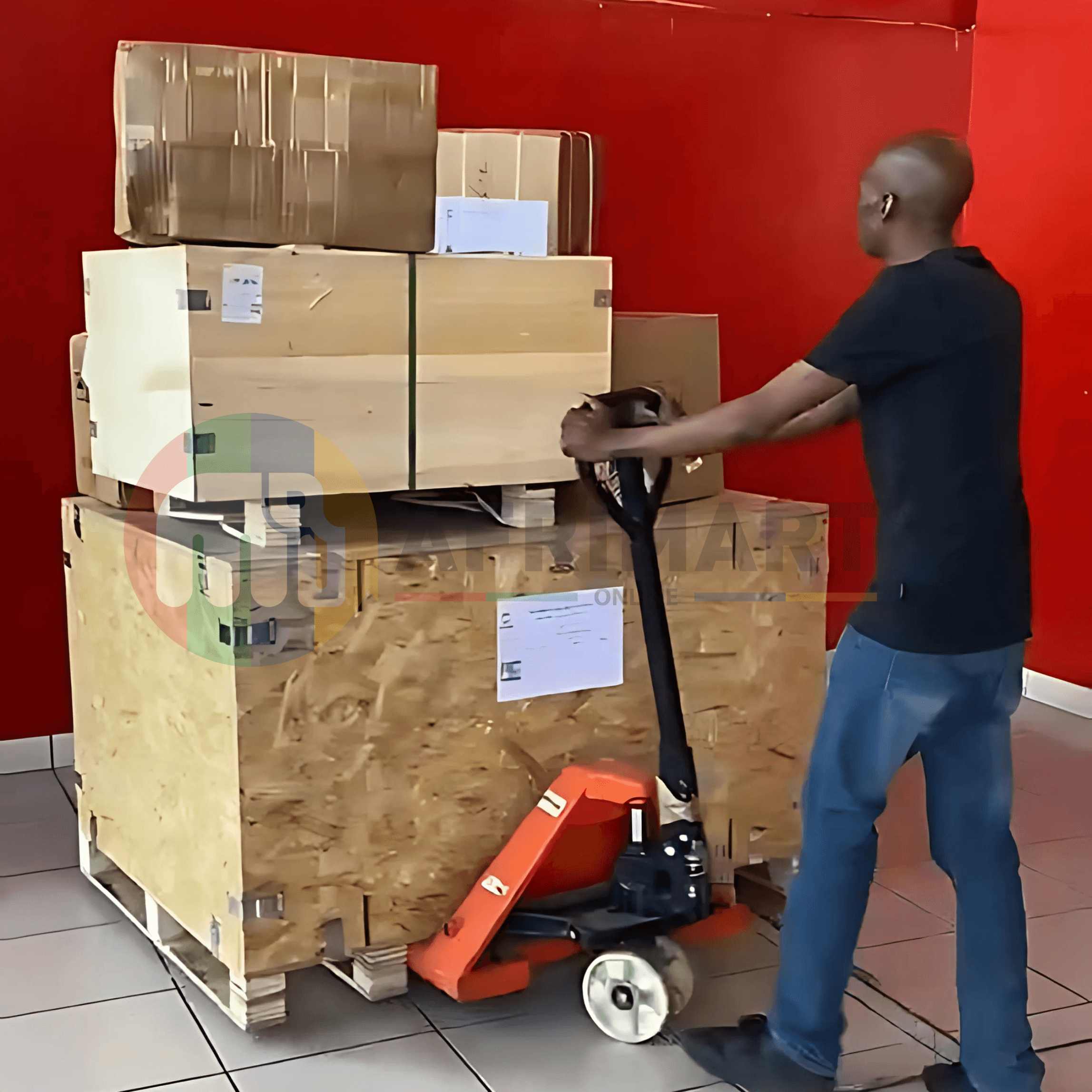
Pre Orders Offloading
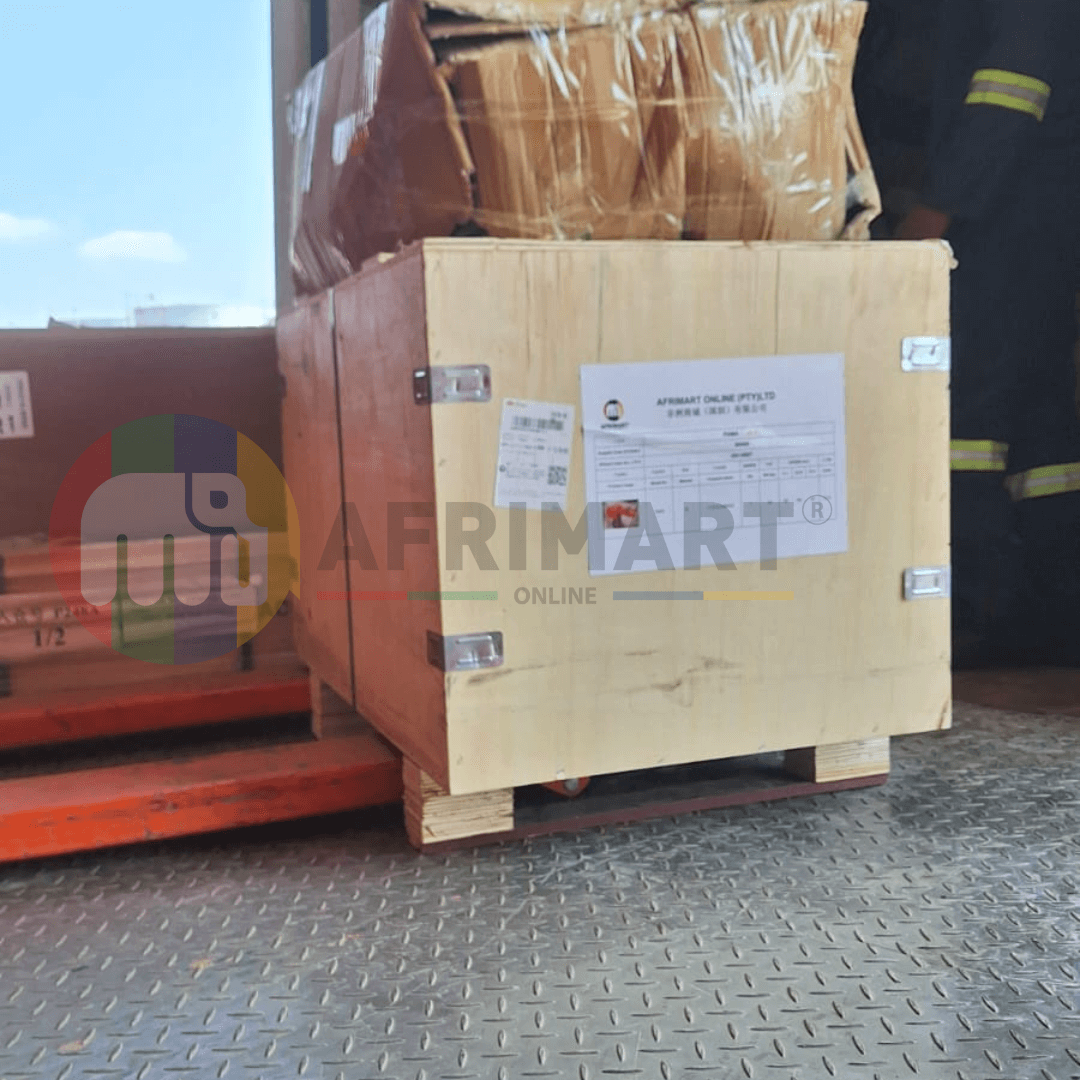
Latest Arrivals
Latest Arrivals