B21, China Town Mall, Midrand

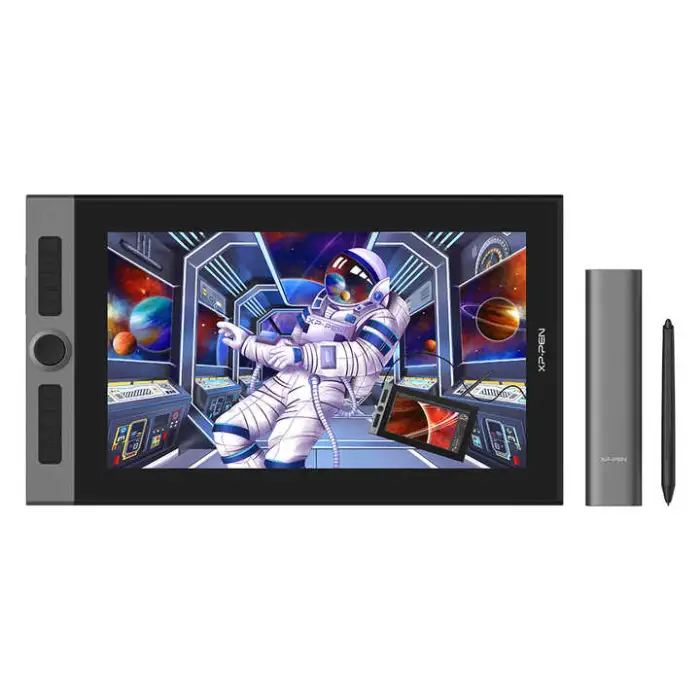
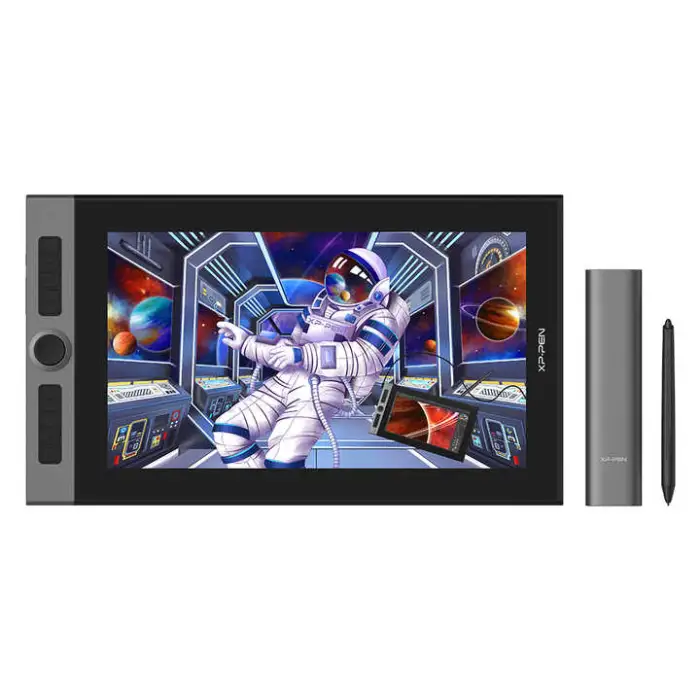
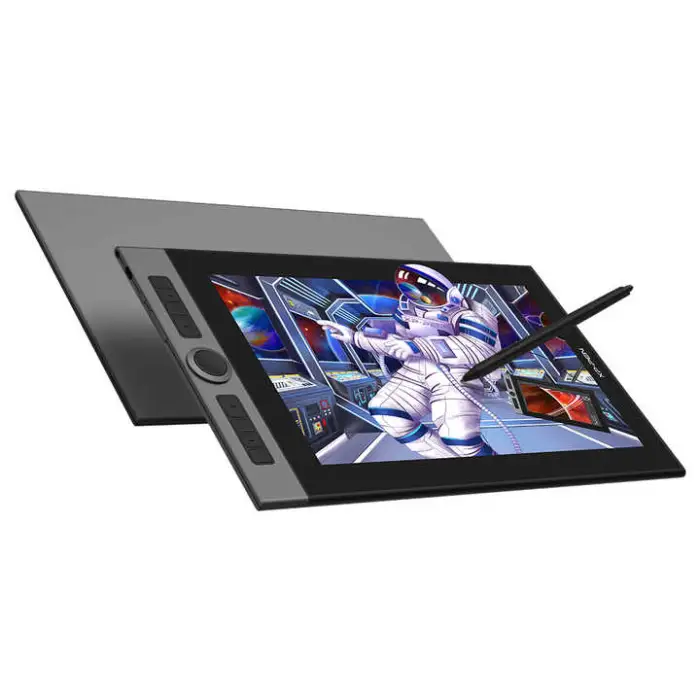
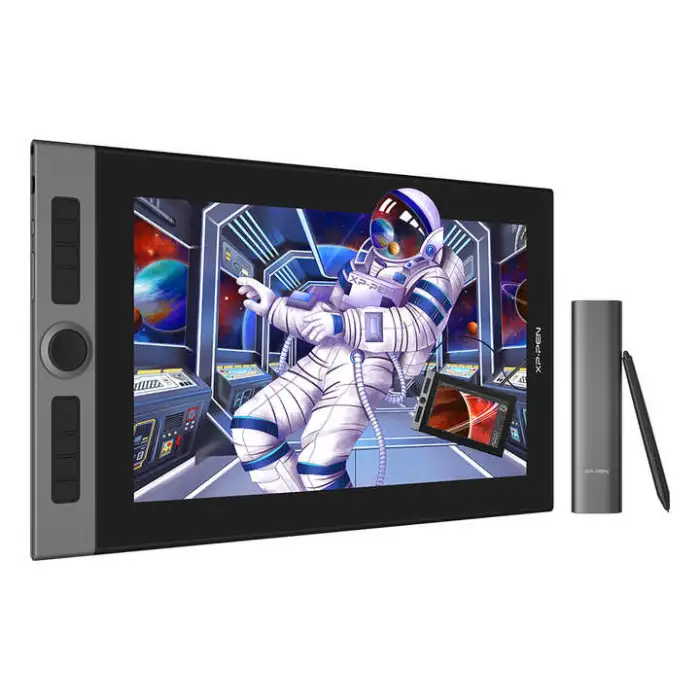
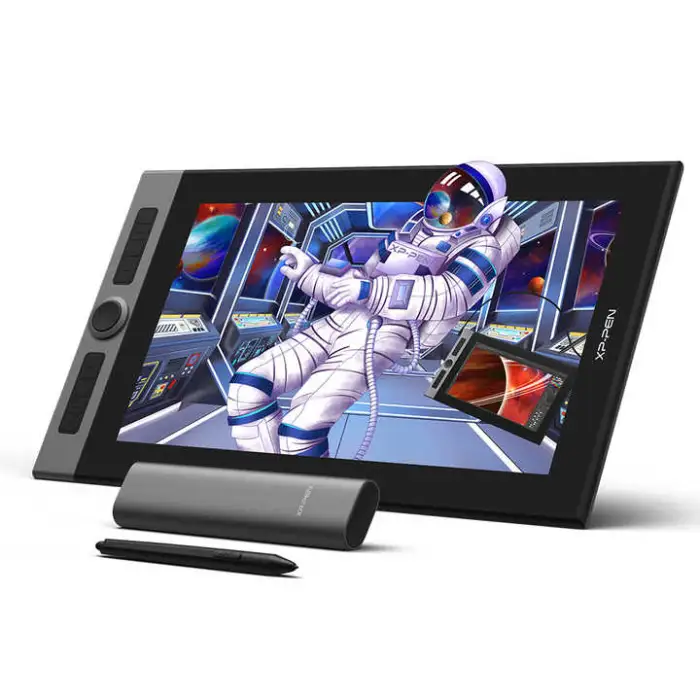
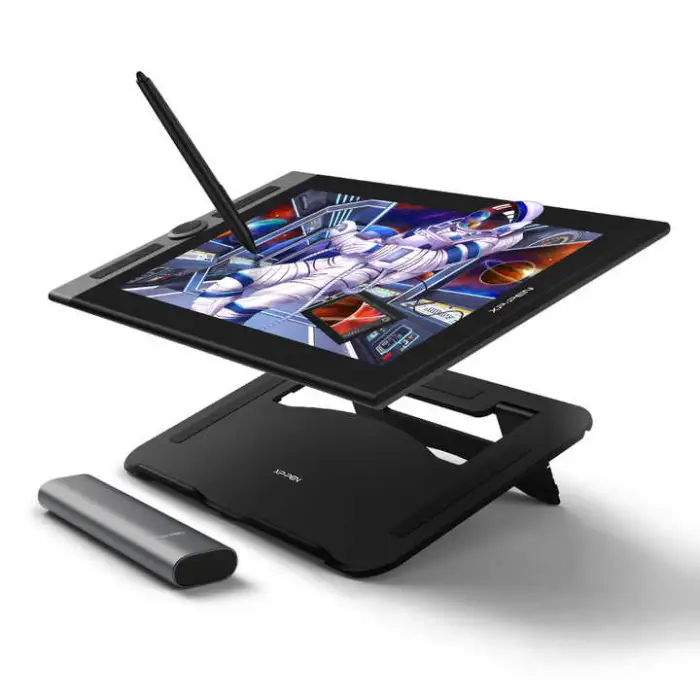
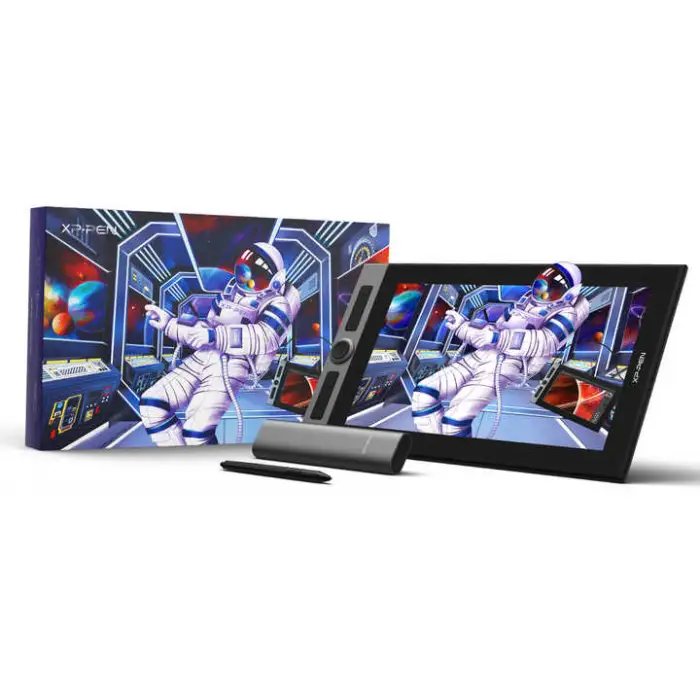
XP-PEN Artist Pro 16 Ultrathin Digital Design Screen X3 Smart Chip Pen Display Drawing Graphic Tablet

- Section : Consumer Electronics
- Category : Computer Hardware & Software
- SKU : 1600344603302

XP-PEN Artist Pro 16 Ultrathin Digital Design Screen X3 Smart Chip Pen Display Drawing Graphic Tablet
The XP-PEN Artist Pro 16 is a fantastic digital drawing tablet. It has a sleek, ultrathin design that makes it easy to use and carry. With the X3 Smart Chip, it provides a smooth and responsive drawing experience. This tablet is perfect for artists, designers, and anyone who loves to create. Enjoy vibrant colors and precise details as you bring your ideas to life!
Specifications
| Attribute | Details |
|---|---|
| Product Name | XP-PEN Artist Pro 16 |
| Dimensions | 443.27 x 256.45 x 9mm |
| Work Area | 340.99 x 191.81mm |
| Stylus | X3 Elite Plus |
| Tilt | 60 degrees |
| Color Gamut (typical) | 99% Adobe RGB, 94% NTSC, 133% sRGB |
| Shortcut Keys | 8 |
| Resolution | 5080LPI |
| Brightness | 220 cd/㎡ |
| Selling Units | Single item |
| Single Package Size | 39X23X19 cm |
| Single Gross Weight | 1.520 KG |
Key Features
- Ultrathin design for easy portability
- X3 Smart Chip for fast and accurate drawing
- High color accuracy with 99% Adobe RGB
- 8 customizable shortcut keys for quick access
- Smooth tilt support up to 60 degrees
Applications
- Digital art creation
- Graphic design projects
- Animation and illustration work
- Photo editing and retouching
- Educational purposes and tutorials
Product Info Gallery
- Shipping Timeframes: All orders are processed within 2-5 business days (excluding weekends and holidays). After your order has been processed, the estimated delivery time is before 05 Aug, 2026, depending on customs, Please note that due to high demand, some items may experience longer shipping times, which will be communicated at order confirmation email.
- Order Processing Time: Please allow 2-5 business days for us to process your order before it is shipped . Orders placed after 16:00 on Fridays, or during weekends and public holidays, will begin processing on the next business day. Processing times may be extended during peak seasons or sales events.
- Manufacturing Time: Some products needs manufacturing time, the manufacturing process will take approximately 10-30 business days depending on the product. This timeframe may vary depending on the complexity of the product and current demand. but this will be communicated with you during order confirmation.
- Returns and Exchanges: We offer a 30-day return policy for most items. If you are not completely satisfied with your purchase, you may return it within 30 days of receipt for a refund or exchange. Items must be unused, in their original packaging, and accompanied by proof of purchase. Return shipping costs are the responsibility of the customer, unless the item was damaged or defective upon arrival.
1. What are the main specifications of the XP-PEN Artist Pro 16?
The Artist Pro 16 has overall dimensions of 443.27 x 256.45 x 9 mm, a working area of 340.99 x 191.81 mm, a brightness of 220 cd/m², 5080 LPI resolution for pen accuracy, tilt support up to 60°, 8 customizable shortcut keys, and high color accuracy (99% Adobe RGB, 94% NTSC, 133% sRGB). The supplied stylus is the X3 Elite Plus.
2. What does the X3 Smart Chip do?
The X3 Smart Chip improves pen responsiveness and accuracy, reduces input lag, and enables smoother stroke detection for a more natural drawing experience.
3. Which stylus comes with the tablet and what are its capabilities?
The tablet ships with the X3 Elite Plus stylus. It supports tilt up to 60° and delivers professional-grade precision and responsiveness. For exact pressure sensitivity levels and other stylus details, refer to the official product documentation.
4. Is the screen color-accurate enough for professional photo editing and design?
Yes — the display covers up to 99% Adobe RGB (typical), making it well-suited for color-critical work. For the most accurate results, calibrate the display with a hardware colorimeter and work in a color-managed workflow.
5. How portable is the Artist Pro 16?
The device features an ultrathin design (9 mm thickness) and a single gross weight of about 1.52 kg, making it relatively easy to carry for on-the-go artists and designers.
6. How many shortcut keys are available and can they be customized?
There are 8 customizable shortcut keys. You can assign shortcuts and customize their behavior using the XP-PEN driver/software.
7. Which operating systems and creative apps work with this tablet?
The Artist Pro 16 is designed to work with major creative applications (for example, Adobe Photoshop, Illustrator, Clip Studio, and similar software). It typically supports mainstream desktop OSes — check the seller listing or XP-PEN website for the current driver downloads and exact OS compatibility.
8. How do I install drivers and set up the tablet?
Download the latest XP-PEN driver from the official XP-PEN website, install it, connect the tablet to your computer per the quick start guide, then use the driver utility to calibrate the screen, customize shortcut keys, and configure pen settings.
9. Does the tablet support tilt and how does that affect drawing?
Yes — the stylus supports tilt up to 60°. Tilt support lets you create natural brush angles and shading effects in supported software, enhancing realism for sketching and painting.
10. What is the display brightness and how will it perform in different lighting?
The display brightness is 220 cd/m², which is suitable for most indoor working conditions. In very bright ambient light you may need to reduce room glare or increase monitor brightness on your computer to maintain comfortable visibility.
11. Is the tablet touch-enabled (multi-touch gestures)?
Touch support is not specified in the provided product information. Consult the official product page or user manual to confirm whether multi-touch gestures are supported for this model.
12. How should I clean and maintain the screen and pen?
Turn off and disconnect the tablet before cleaning. Use a soft, lint-free microfiber cloth slightly dampened with water or a screen-safe cleaner to wipe the display. Do not use harsh chemicals or abrasive materials. Store the pen in its holder when not in use and replace nibs as needed according to the manual.
13. What is the active/work area of the display?
The active work area is 340.99 x 191.81 mm, which gives you a comfortable drawing surface for detailed work while keeping the overall device compact.
14. Can I mount the Artist Pro 16 on a monitor arm or drawing stand?
Mounting compatibility is not specified in the provided description. If mounting is important to you, check the official product documentation or seller listing for VESA/stand compatibility or recommended third-party mounting options.
15. Where can I get warranty support, drivers, and additional accessories?
For warranty details, driver downloads, user manuals, and official accessories, visit the XP-PEN website or contact the reseller you purchased from. Registering the product with XP-PEN (if available) can help with support and warranty service.
Latest Order Arrivals
Discover our latest orders
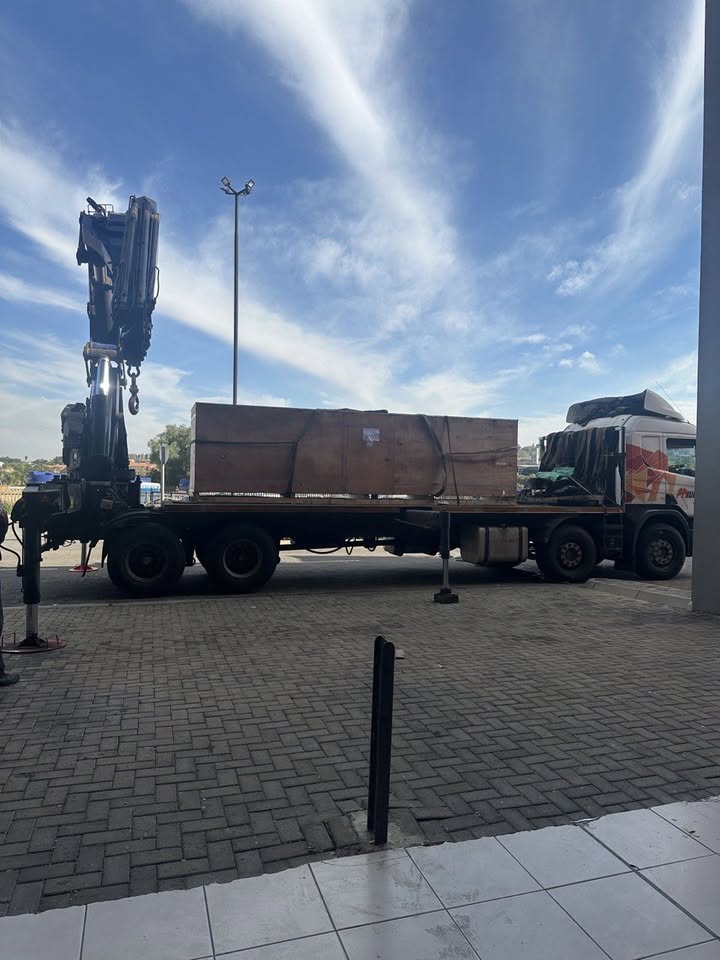
12 Heads Embroidery Machine
Toilet Paper Machine Machine
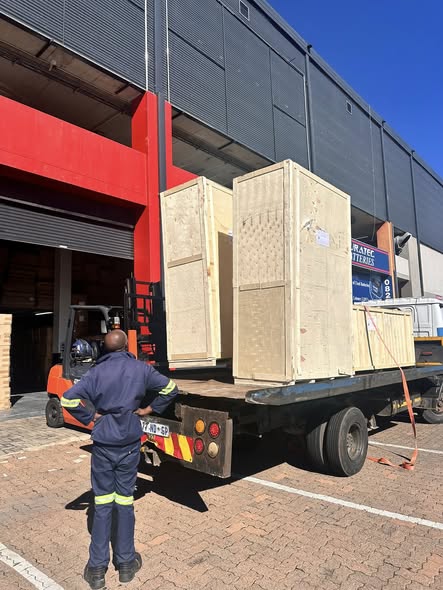
Order Collection
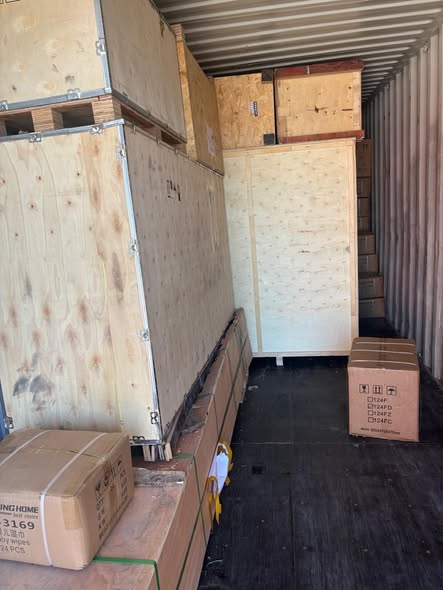
Cross Border Clients
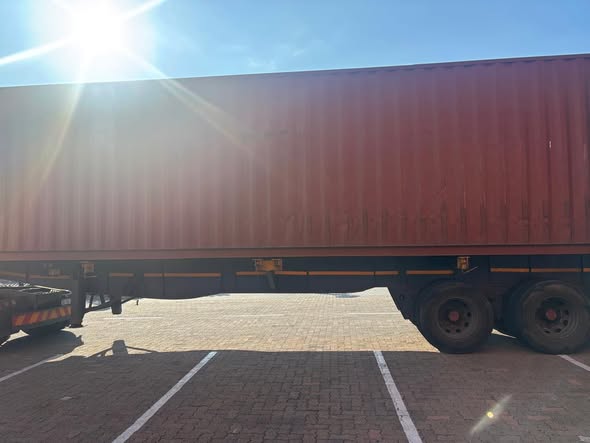
Order cros border countries Collected
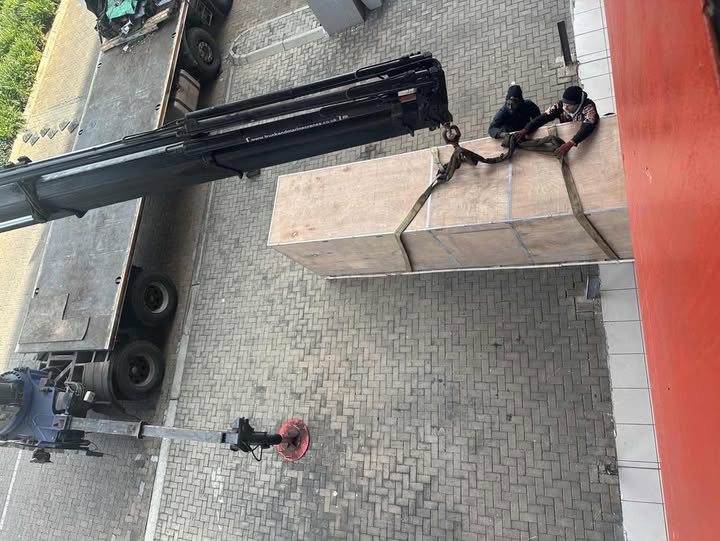
Industrial Machine Cllection

Agriculture Processing Machines
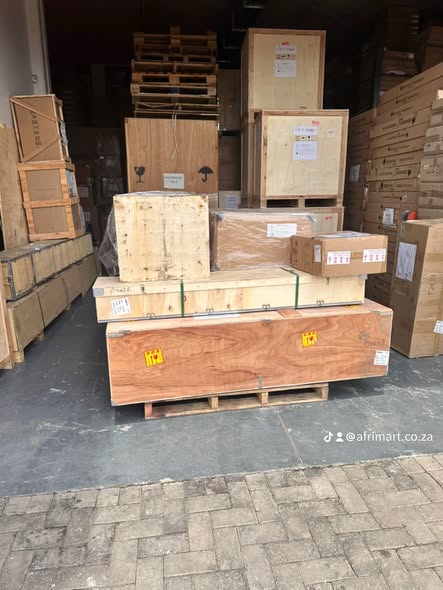
Ready for collection

Water Pump Equipment
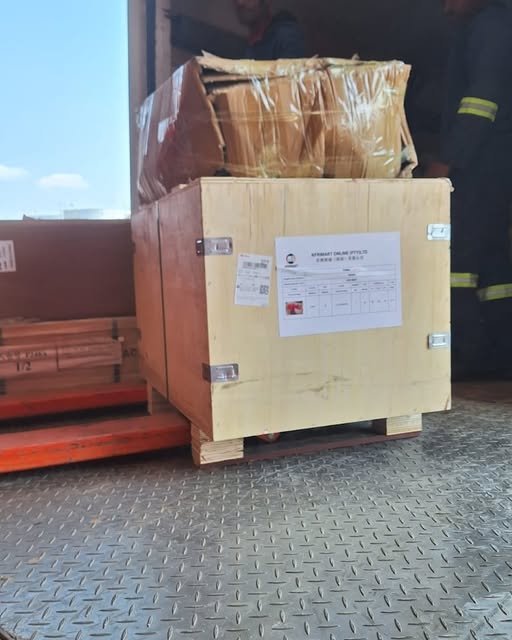
Packaging Machine and accessories
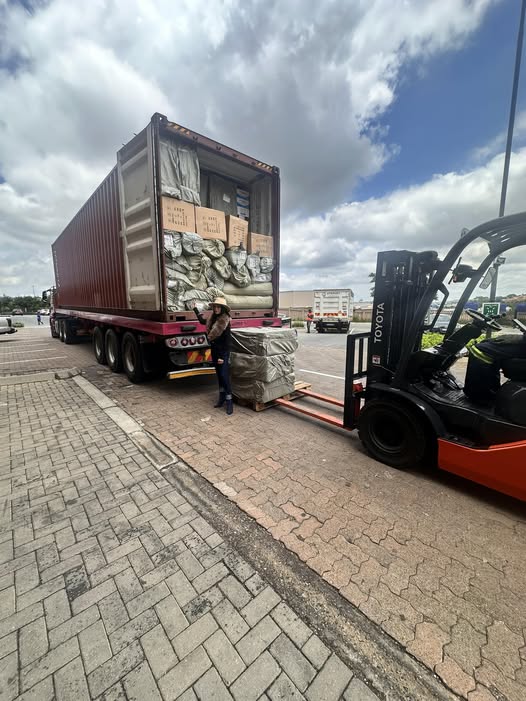
Fabrics Manufacturing Equipment
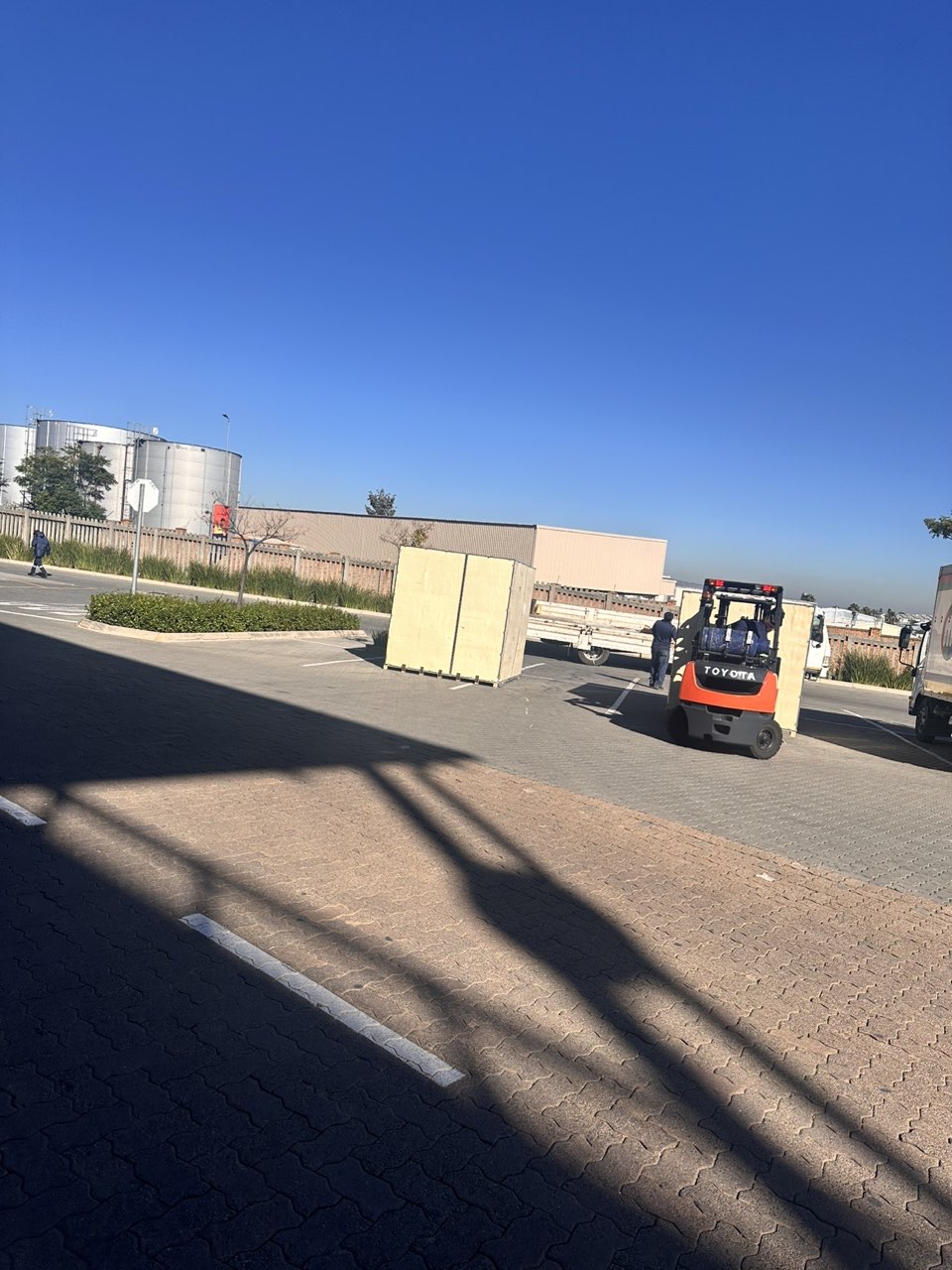
Mining Equipments
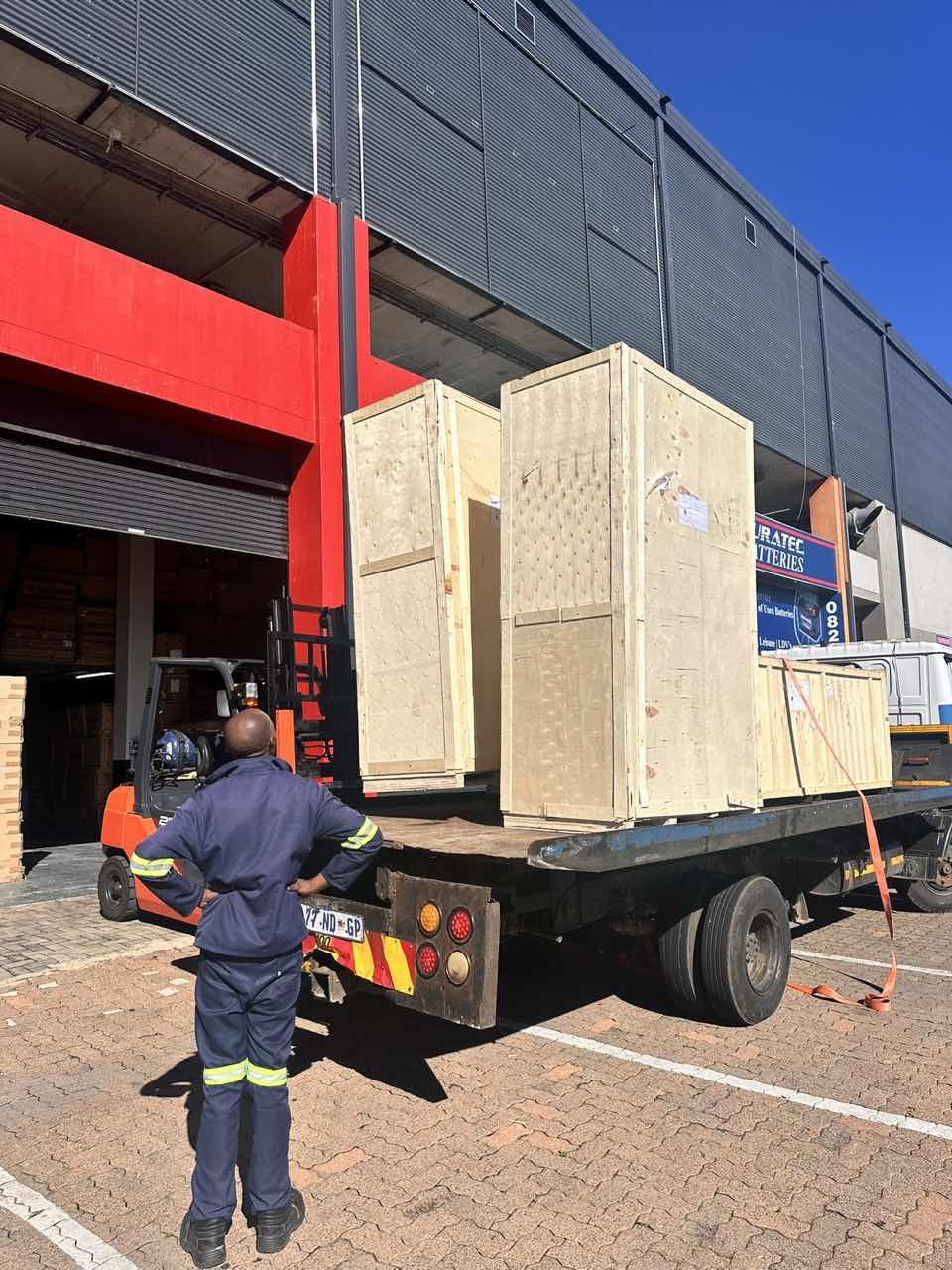
Food Processing Machine
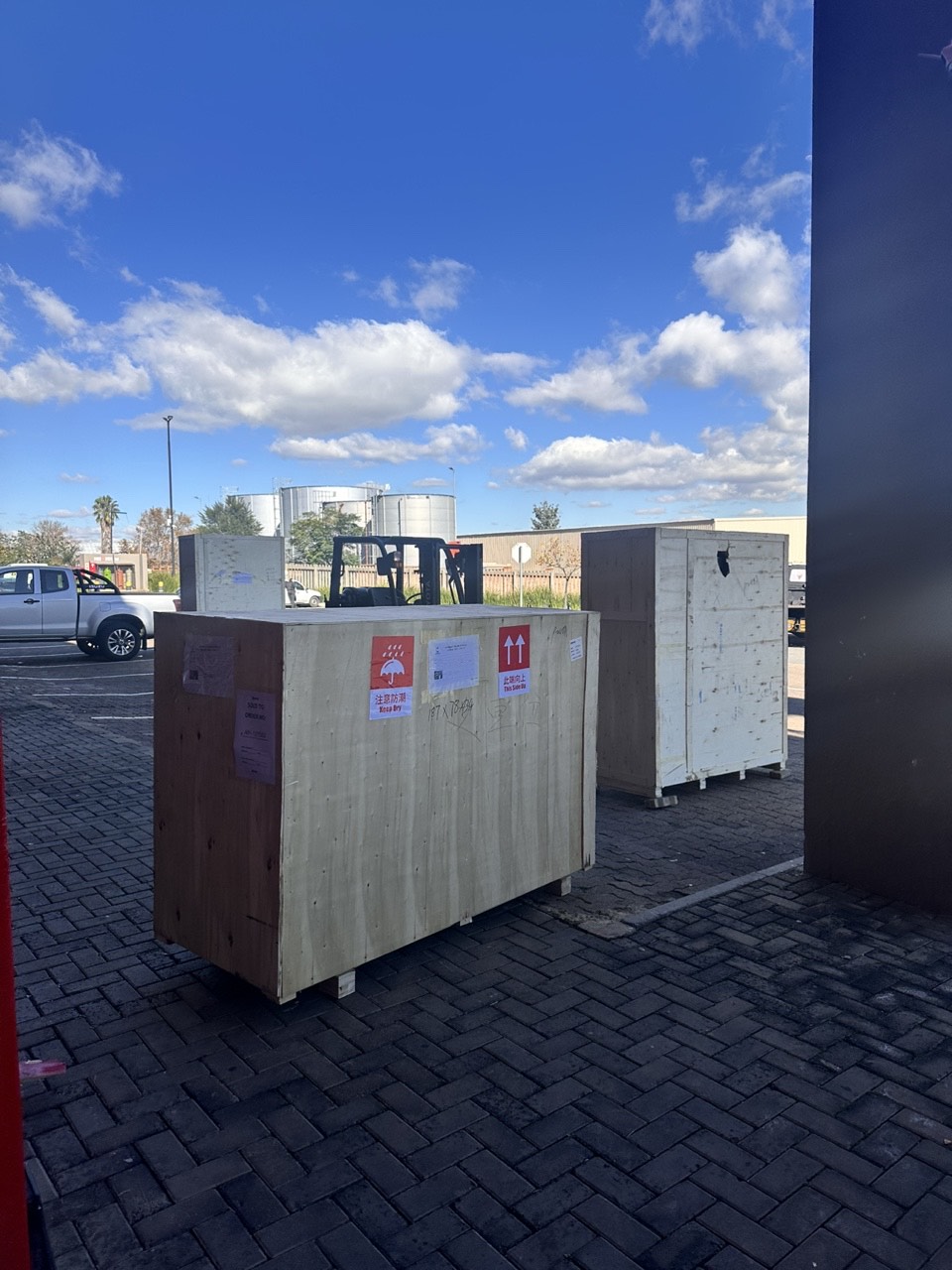
Batch of Orders
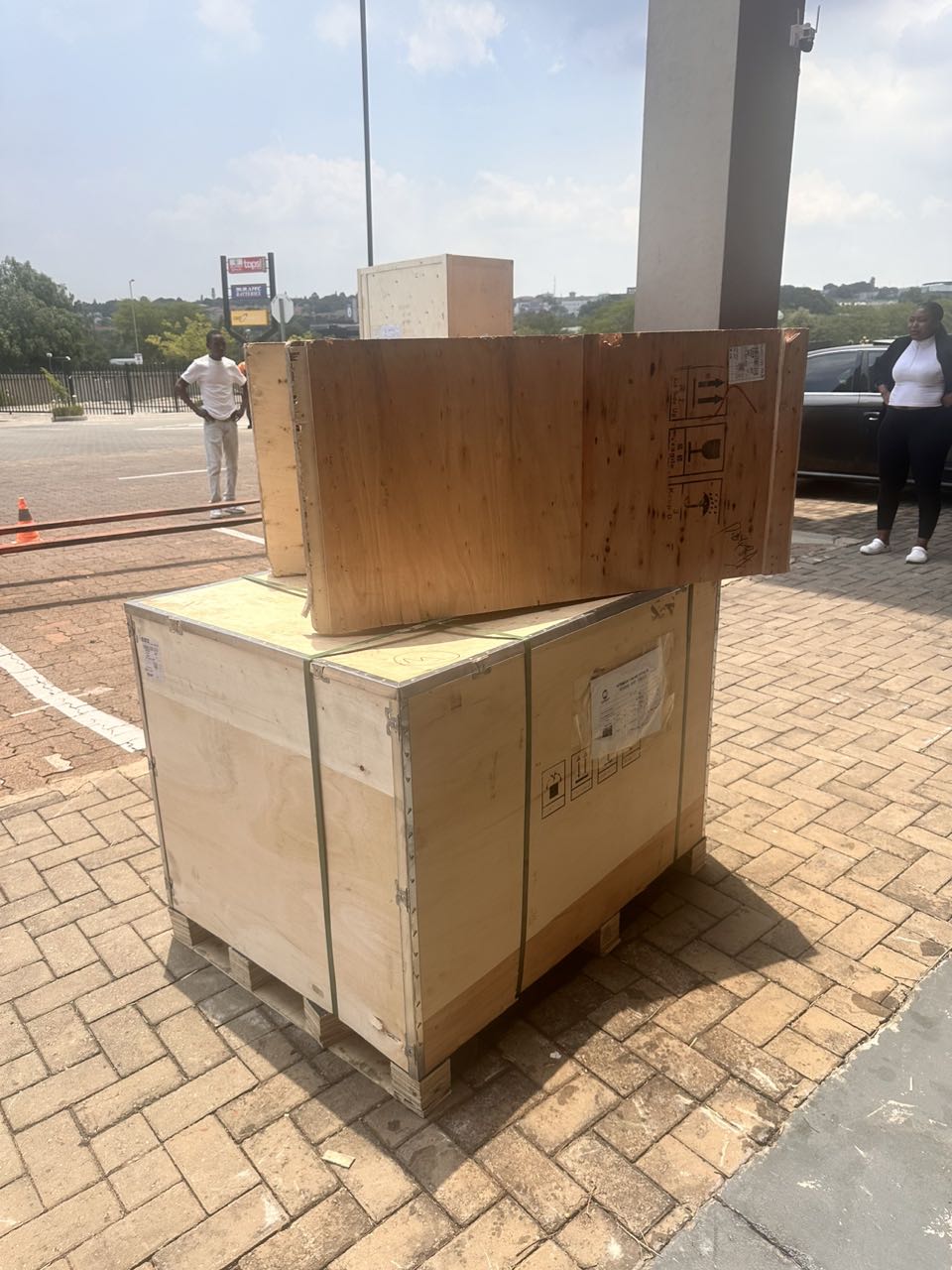
Batch of Orders
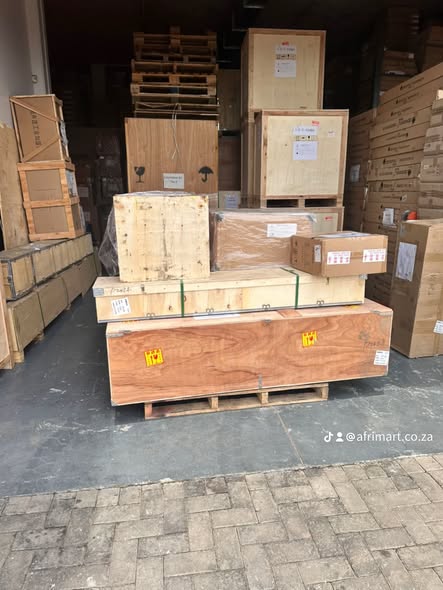
Latest Orders Labelled

wheel alignment machines

new arrivals
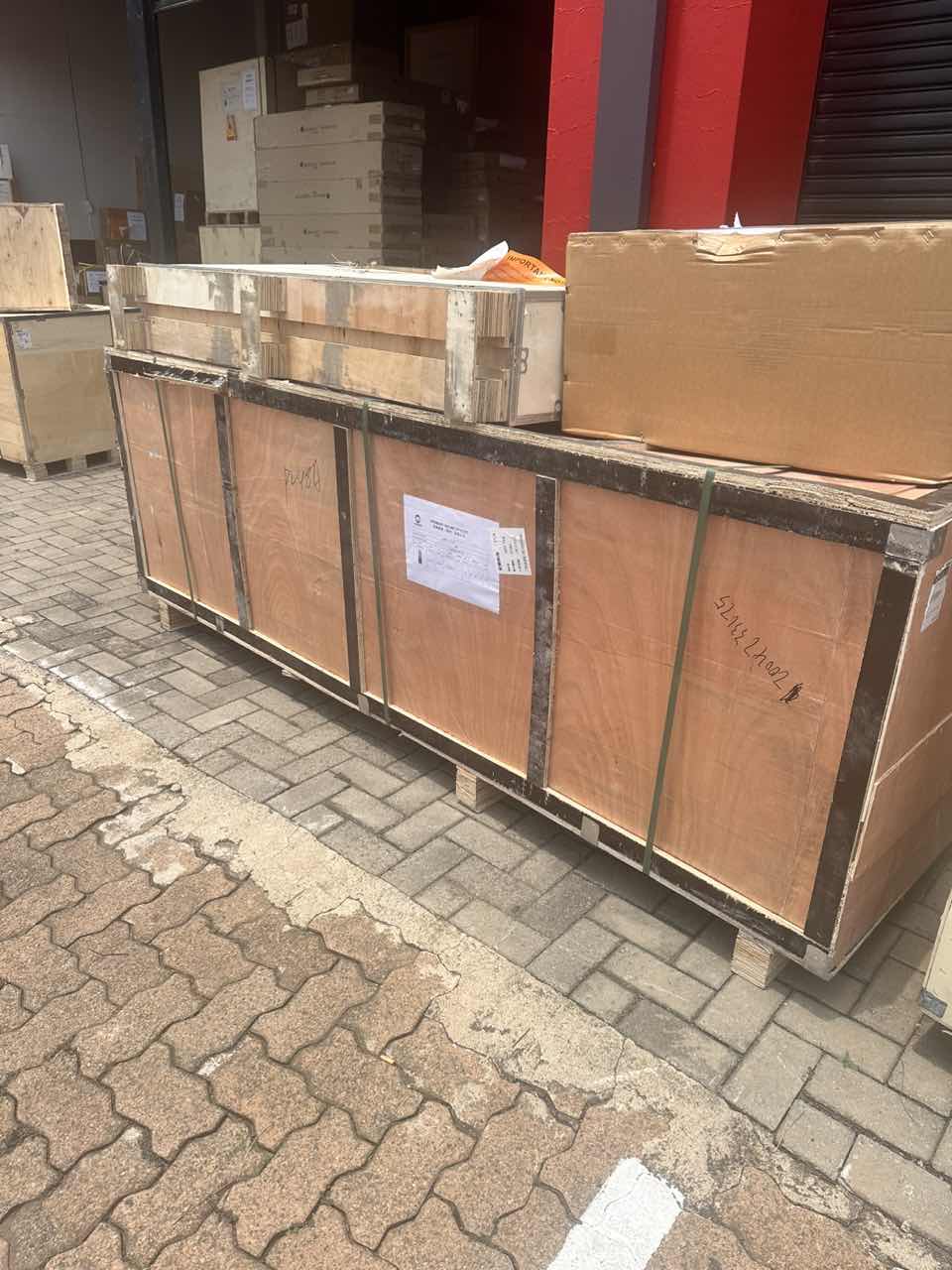
Pre Orders Offloading
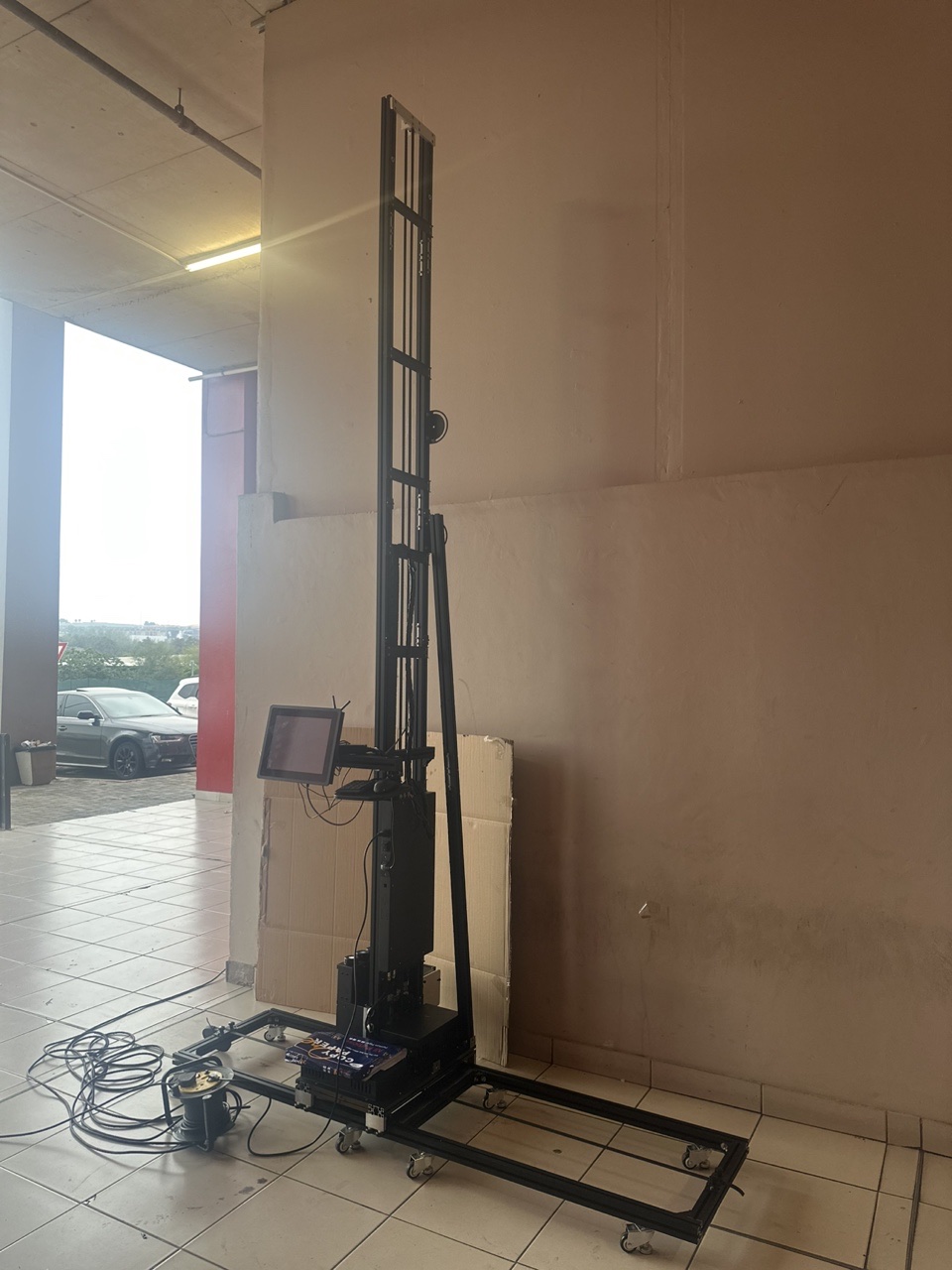
Latest Arrivals
Latest Arrivals
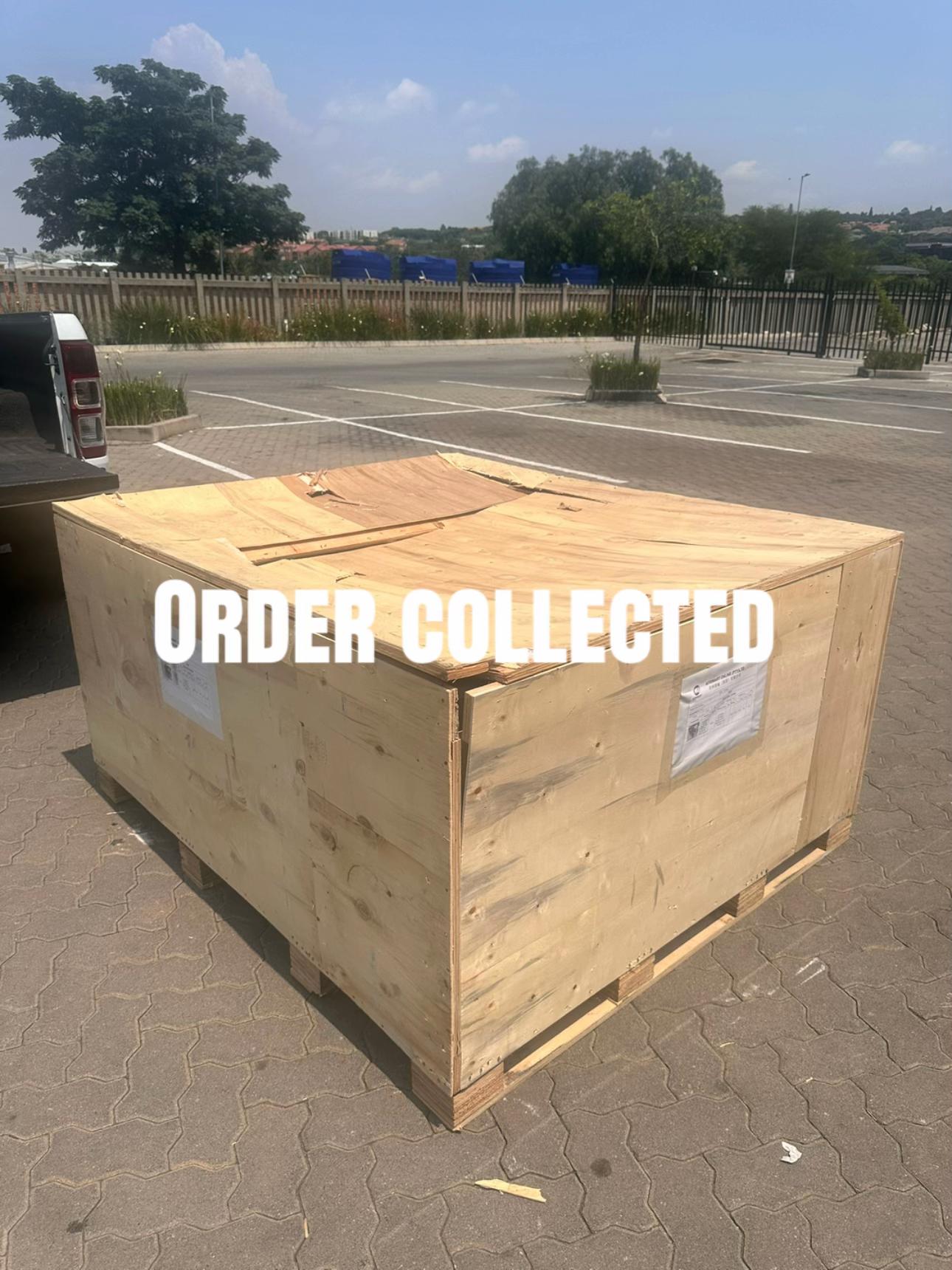
Latest Arrivals
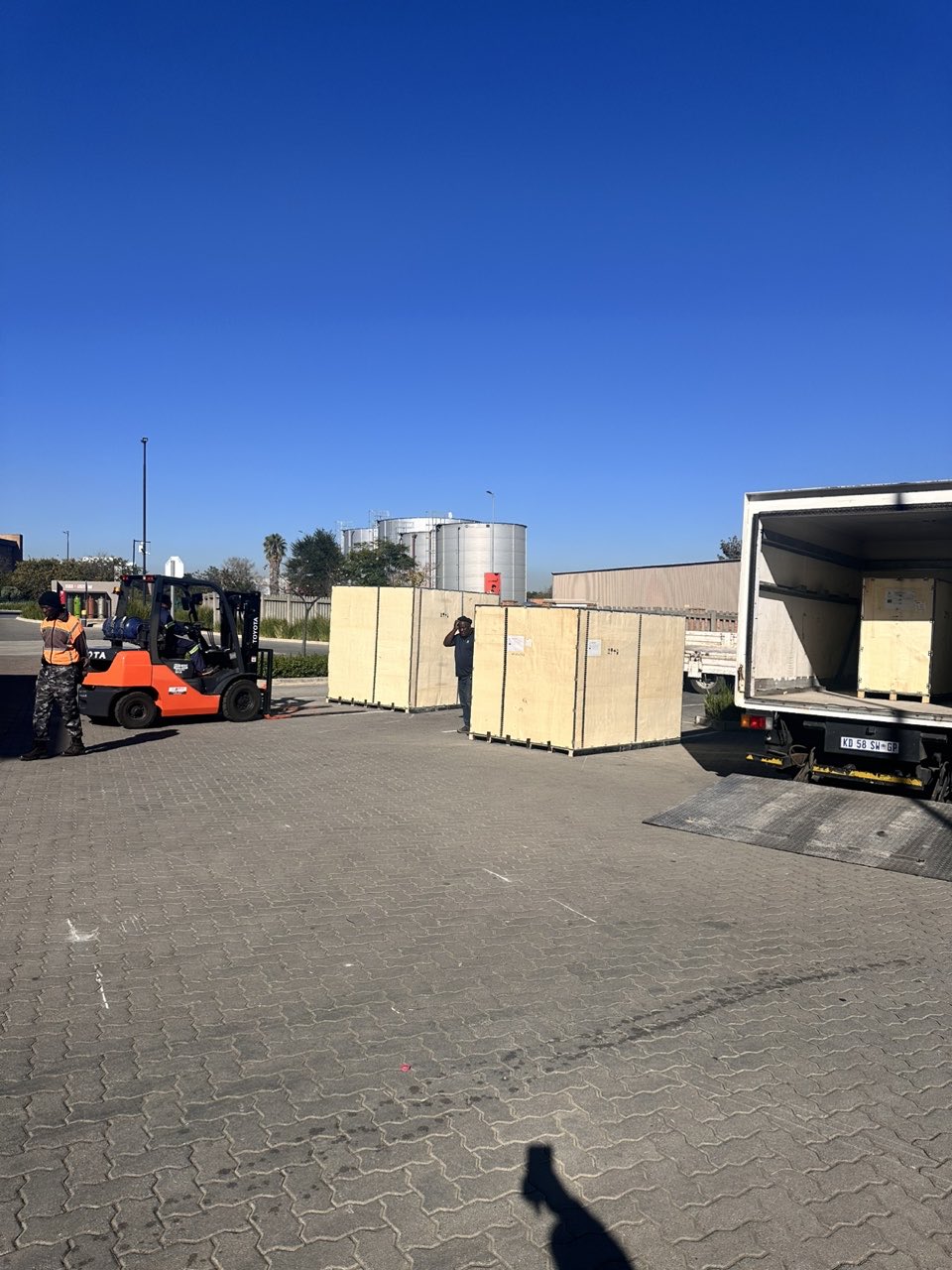
Loading
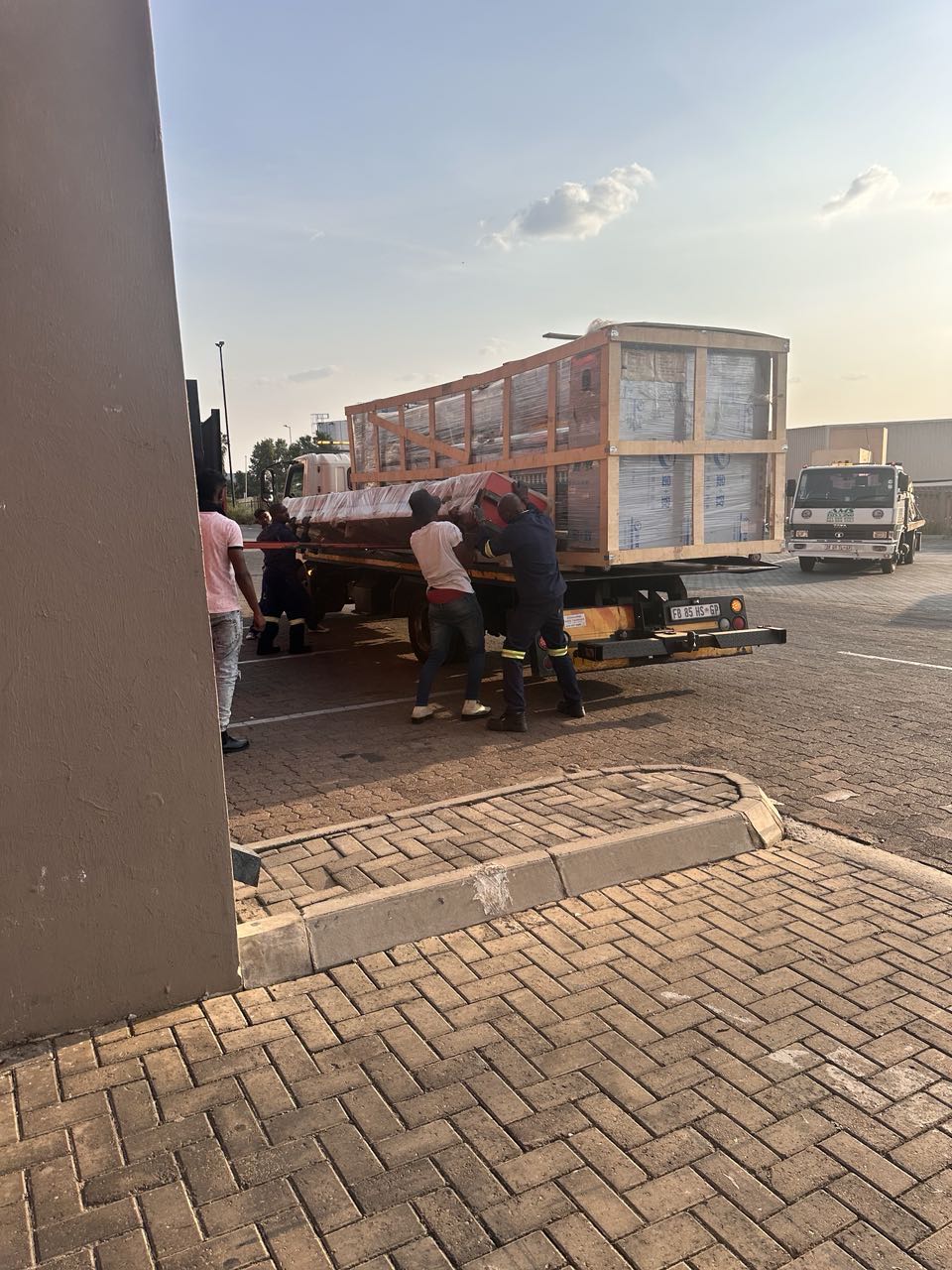
Toilet paper making machine
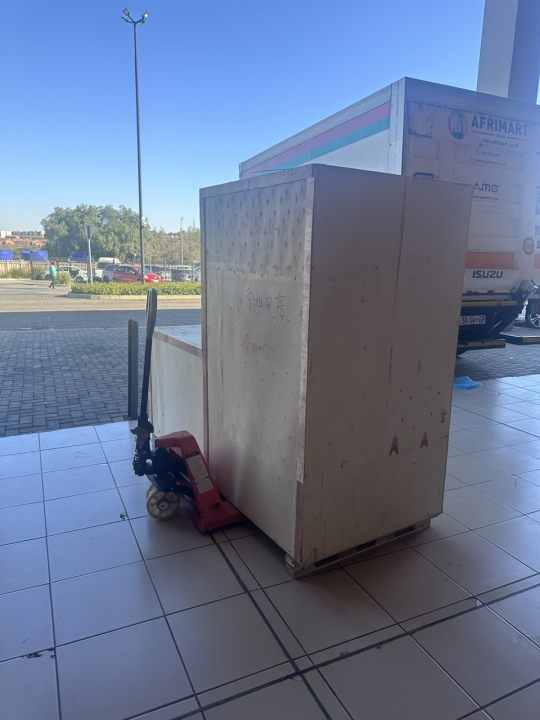
Toilet paper making machine
Toilet paper Rewinding Machine
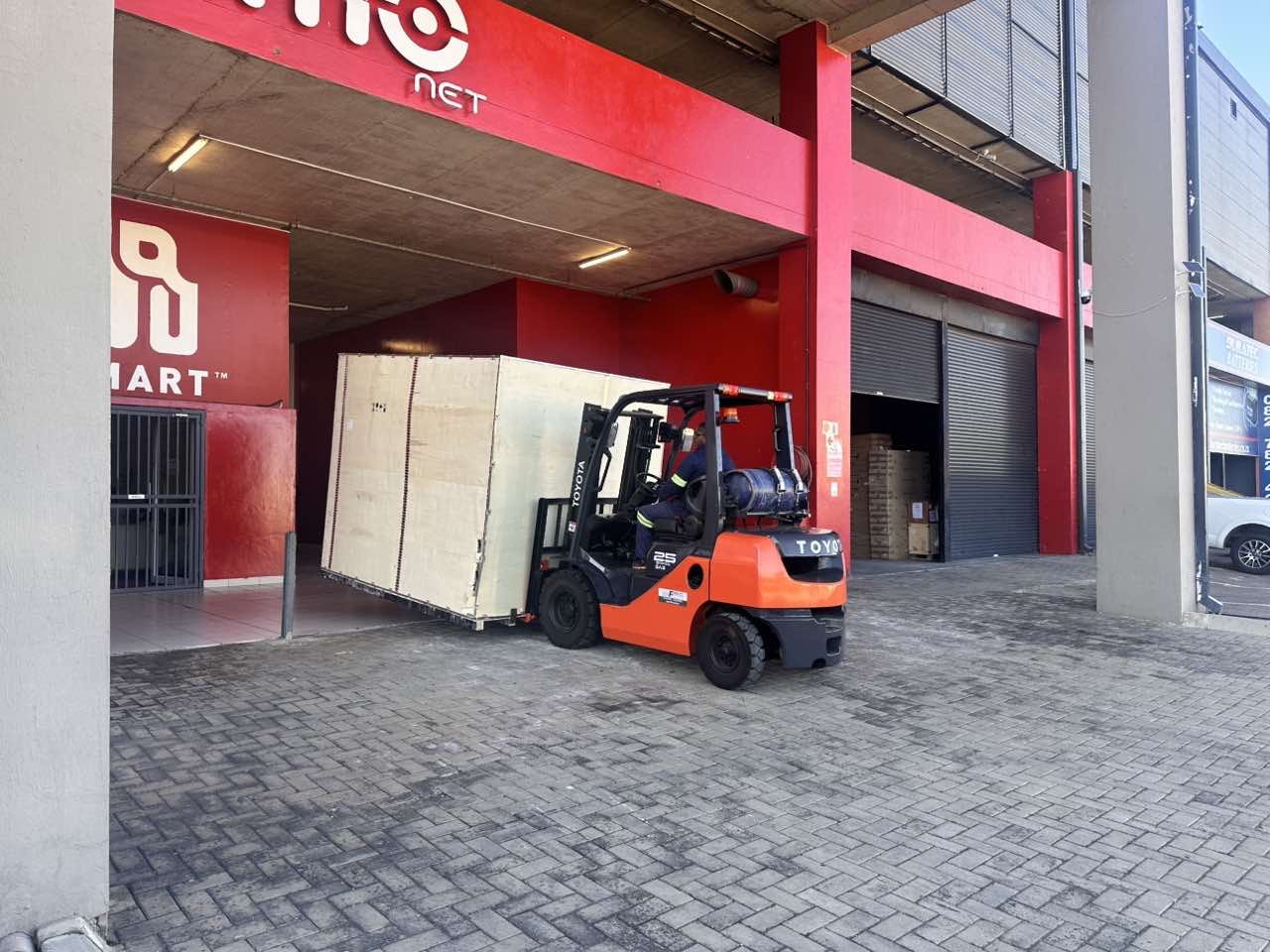
latest arrivals
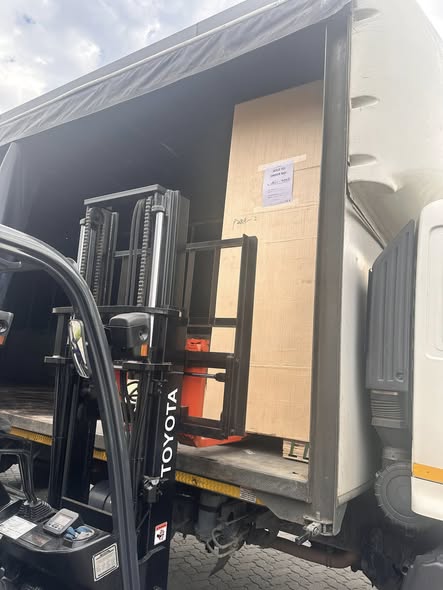
offloading
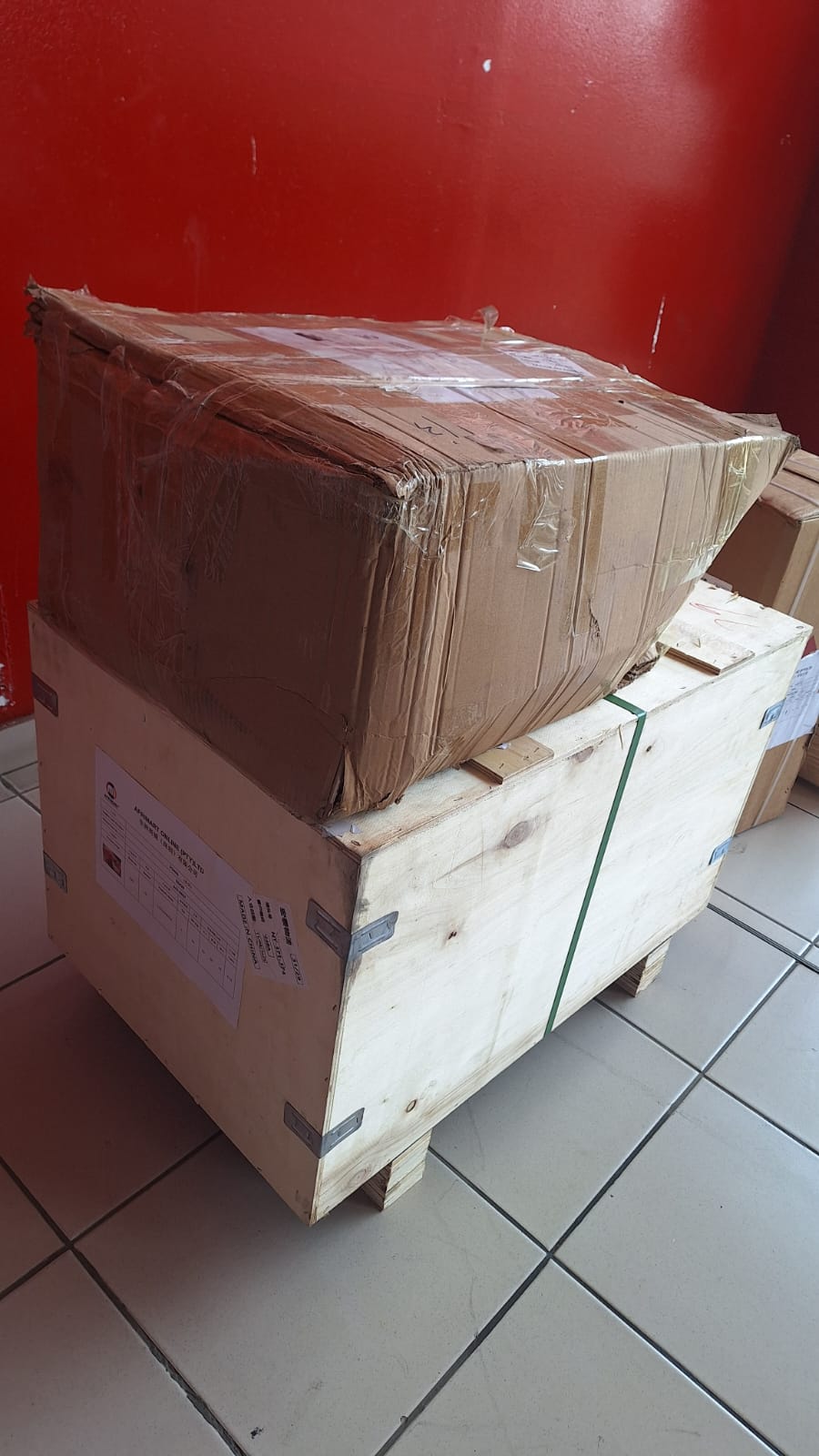
order success
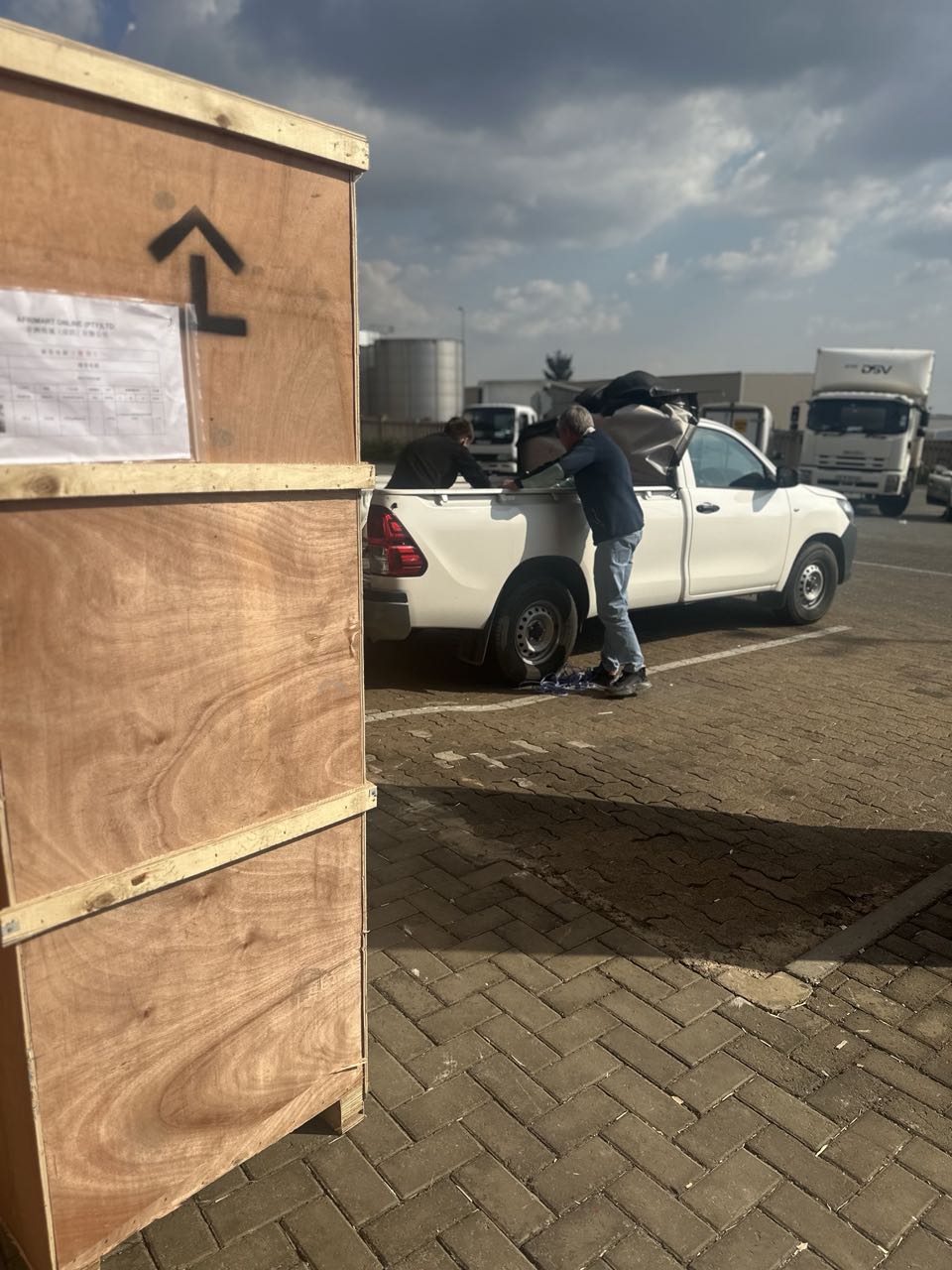
order collection
order offloading